How to Manage your Digital Identity

“You have zero privacy anyway. Get over it”.
Scott G. McNealy CEO of Sun Microsystems Inc. January 26, 1999

Browsers & your Digital Footprint – I don’t think tech4boomers can cover the privacy on-line topic too often. In fact, in March 2012 we published a post “The Scoop About On-line Snooping”) where we covered this topic.

Every time we  revisit this topic, there are new techniques and products, which claim that they can “fix” this very perplexing issue of how to protect our identities and the information being gathered by browsers (e.g. Google) on the World Wide Web (www).

Nowadays, every time we use the Internet our “habits” (e.g. places we like to visit, and spend money and time) are being recorded by “cookies”.

Cookies are messages that web servers pass to your webbrowser when you visit Internet sites. Your browser stores each message in a small file, called cookie.txt. When you request another page from the server, your browser sends the cookie back to the server. These files typically contain information about your visit to the web page, as well as any information you’ve volunteered, such as your name and interests. via What are cookies? – Knowledge Base.

Our dependency on the www makes it very difficult to avoid information being gathered about our on-line habits.  For example, every time we email, pay bills, order on-line, or use skype, information is being gathered about us. Google has in fact confirmed that it gathers information when you use its browser.  Opposite to what you might expect, Google has also produced a set of guidelines on how to protect yourself from its on-line “snooping“.

What Can You Do About It?

Recently I came across an article “How to Erase Your Digital Footprint”, by Jeffrey A. Lambert – Maximum PC. A summary of that article states the following:

visiting web sites produces “tracking cookies” on your computer.  Cookies allow these websites to keep track of your online preferences.

 the Network Advertising Initiative (NAI) is working towards providing solutions and making consumers aware of the practices.

 there are tools available that can be added to your computer for constant monitoring and control to help you find out how big your digital footprint is.

Digital Footprint Calculator will estimate your digital footprint.  This is a service from EMC Corporation.

on a daily basis Google “pings” your browser for information about browsing history. This helps them to target advertising.

  “free” software is available which helps to determine how often Google is “pinging” your computer browser. e.g. Google Alarm by F.A.T. Labs  will give you a visual or audio alert when personal information is sent to google servers.

Simply cleaning out your cache of cookies on your computer will aid you in safe browsing. Check your preferences option in your browser and click the “delete cookies” option.  However, be aware customization on sites you visit will also be deleted.

There is much more to learn about various techniques that can help you reduce this concern.  Check out the full details by clicking the link below.

Erasing Your Digital Footprint -via Maximum PC | How To Erase Your Digital Footprint.

I hope this is helpful! 🙂

O/S–What Operating System?

How many of us are holding on to that computer we bought many years ago, hoping that it will serve our purposes in the future?  How many of us know what Operating System we are using, and, if we need an upgrade?

The Operating System is the most important program that runs on a computer.
Every general-purpose computer must have an operating system to run other programs.
 Operating systems perform basic tasks, such as recognizing input from the keyboard, sending output to the display screen, keeping track of files and directories on the disk, and controlling peripheral devices such as disk drives and printers. via Operating System – A Definition From the Webopedia Computer Dictionary.

¿ What Operating System Are You UsingWindows XP originally released in October of 2001. Almost 11 years ago.

  1. Today you may want to check which O/S you have on your computer.
  2.  Go to your Control Panel.
  3.  Click Help.
  4. Click About Windows.  A screen will pop up with the ‘version’ of your operating system.

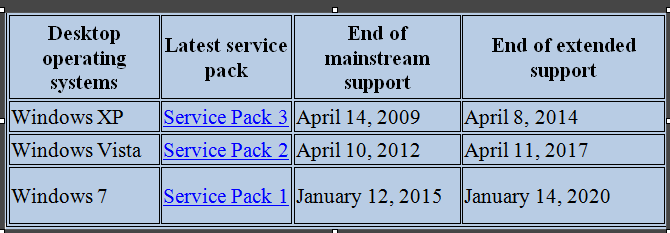
¿Is your Operating System Windows XP? If the answer is Yes, then you may want to consider an Upgrade because in the near future the XP Operating System will no longer be supported, and this will put  the information stored on your computer with an outdated XP O/S at risk.  Look at the chart below, and check  today if you need to upgrade.

Click the diagram to see a larger image

XP Operating System Users:
Below is an explanation of the things you should know. Click on the link for the fact sheet if you want a more detailed explanation.

SUPPORT

Extended support—(Commercial Customers Only) Microsoft will offer extended support for either a minimum of 5 years from the date of a product’s general availability, or for 2 years after the second successor product (two versions later) is released, whichever is longer.

End of Mainstream support …if you buy a new version of Windows and five years later another version is released, you will still have two years of support left for the previous version.

End of support refers to the date when Microsoft no longer provides automatic fixes, updates, or online technical assistance. This is the time to make sure you have the latest available service pack installed.

Without Microsoft support, you will no longer receive security updates that can help protect your PC from harmful viruses, spyware, and other malicious software that can steal your personal information. via Windows lifecycle fact sheet – Microsoft Windows.

Don’t delay, check your Operating System today!
In the next post we will talk about upgrading your Personal Computer.

I hope this is helpful 🙂

July 9, 2012 … DNS Changer Deadline…

 Have you tested your computer at the FBI Website to make sure you are not infected with DNS Changer Malware? In our June 18, 2012 post we discussed  what it’s all about.  Below is a summary of an article written by Matt Peckham at Time Techland. It’s a reference about the FBI deadline and what will happen if you do not check your computer(s) for DNS Changer Malware… Click the link at the end of the summary to read the entire article.

 ♣ There’s a story circulating that if you don’t ensure your computer is malware-free by July 9, 2012, the FBI will shut off your access to the Internet. Like most such alarmist claims, it’s only partly true, though if you’re a Windows or Mac user, you’ll want to pay attention…

 DNSChanger targets Windows or Mac systems (Linux, iOS and Android users are in the clear) by manipulating Domain Name Servers (DNS), which translate syntax-based URLs into IP addresses…

To be clear, your Internet service itself will be unaffected by the change: If your computer is infected with the DNSChanger malware, your Internet router will keep routing and any commands sent by your computer that aren’t DNS-related will still pass.

 The FBI isn’t shutting off Internet service to impacted machines, it’s just pulling the plug on a stopgap measure designed to bandaid the broken process currently facilitating DNS communication on infected machines…

How do you tell if you’re infected? Simple: The FBI runs a DNS checker page, where you can type your DNS info into a box to check its validity. Easier still, you can click on a link that’ll automatically check and return either a green or red background, indicating “clean” or “infected” states, respectively. via DNSChanger: FBI Warns Infected Computers Will Lose Web, Email Access in July | Techland | TIME.com.

You can check your computer now by clicking the dns-ok  link below.

http://www.dns-ok.us/

♣ ♣ ♣

I hope this is helpful ! 🙂

Email Clutter: How to Organize and Tidy Up Your Inbox

My Email Helper

Wouldn’t it be great if you had a tool that would take care of your Inbox email clutter automatically by filing it into categories so that you could find it quickly when you need it again?  I bet,  chances are your mail is removed from your Inbox automatically to your ‘OLD MAIL’ folder, and you still haven’t found a quick way of locating it.

If you’re a Baby Boomer you probably started out using AOL email and have not switched because you’re comfortable with, and understand how to navigate in the AOL mail environment. However, although there are tools to organize email, most of us are filing those ‘precious’ e-mail items  right there with the newly received mail. I looked at some of the Help Contents in AOL, and decided on  guidelines I think you might find useful.  At the end of this Post you can click the link provided in the Note box to get  detailed descriptions on how to do other sorting options in AOL email.

However, if you are not an AOL email user try applying the SORT technique shown below to your email program, or search your email Help for guidance.  I guarantee once you learn how to use SORT, your Inbox will be easier to manage.

 • Before I cover how to  file email items into Folders, I suggest you become familiar with the SORT option. Below is a quick tip on how to manage your mail items: Using Sort

For this example we will sort using the most often viewed columns when reading mail:  From, Subject, and Date:  Click the image below with your mouse  to see a larger illustration.

Click a column heading to sort by that category

After you complete those sorts, try  clicking the paper clip icon,  and see what happens. 

See you at the next Post when I will cover how to file those emails into Folders. I suspect by the next Post you will have learned other features about sorting your email.

I hope this is helpful 🙂

Note:  Sorting your email list makes it easier for you to prioritize your emails. You can sort the messages in your online mailbox by email address, time of arrival, subject heading, and type of email (email from people you know, from bulk senders, and unknown senders). Your emails in Classic AOL Mail are automatically sorted by date, but did you know you can also sort your messages by sender, read or unread messages, and emails that you’ve flagged?
For more detail click the link below.
via How do I sort emails in Classic AOL Mail? – AOL Help.

For Older Workers: How To Update Your Computer Skills

What is your computer skills IQ?

Being an older worker does have some competitive advantages.  It also brings valuable resources to the working environment. However, as older workers we should  prepare to hone our job working skills for today’s job market. Many office environments use Microsoft applications. Word, Excel, PowerPoint, and Outlook e-mail are just some of the programs used by office professionals today.

I have come to rely on some very helpful sites to aid me in acquiring competitive skills as an office professional. To support you in finding resources fordeveloping new skills, or upgrading your skills, I have connected my Blog to some of the best HELP around for developing computer skills.

Those sites are listed at the Blogroll on the right side of the screen. All you have to do is click the link, and you will be able to explore what the website has available to help you become proficient or even an expert using various software skills.

Below is a brief description of what those sites can offer.

Certiport.com

Certiport offers individuals current and relevant digital skills and credentials for the competitive global workforce. These solutions include the official Microsoft Office certification programs, the Microsoft Technology Associate certification program, the Adobe® Certified Associate certification program, the CompTIA Strata™ IT Fundamentals, the Intuit QuickBooks Certified User certification program and the Certiport Internet and Computing Core Certification (IC³®), delivered by more than 10,000 Certiport Centers worldwide via Certiport | Home – Certify to Succeed.

ShaunaKelly.com

I have found this word processing help the best of the many sites I visit frequently.  If you are a beginner, intermediate, or advanced WORD user, I believe you will find this is a very useful resource.  Just click the link on my Blogroll to use the Word help.


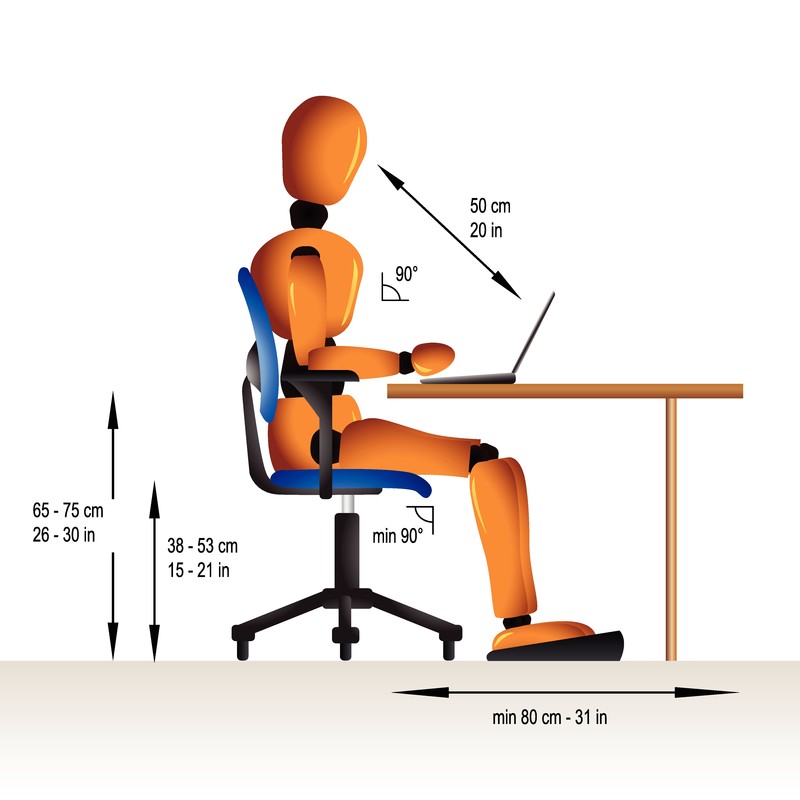
Your body posture is important!

ERGONOMICS I have covered the reasons for having the correct body language at the computer.  Some of you may have already suffered from the stress of working at a computer device all day.  If you are new or an experienced computer user, it is important to have the correct posture when working. If you can’t manage the best posture, you may at least find the exercises provided at this site will help you with relieving some discomforts.  Just click the body language link on my Blogroll.

I hope this is helpful.  See you at the next Post!   🙂

Why I Blog

Thoughts from: @autocreate740

I invited someone to look at my Blog recently, just to tell him that I am doing something new.  He happens to be somewhat computer literate. When I heard back from him, he wanted to know what he was looking for.

Ha!

After receiving that response, I wondered how many Bloggers are out there, who are feeling lonely, and become discouraged about blogging because NO One is reading, or viewing, let alone, commenting, or ‘liking’ their Blogs.

I’ve been blogging since May 2011.  As of October 1, I will have started my 6th month, so it seems right to check what I am doing at Tech4Boomers.com, and to confirm for myself what I think I’m doing.

I have been interested in technology, after leaving a career in film and television, for about 25 years now.  My true ‘likes’ are Outlook Email, and oddly enough,  Word Processing.  I am an iPhone/iPad ‘groupie’. I also dabble in PowerPoint. I Love Apps!

Blogging is my newest avocation; I enjoy learning about this new (for me) technology. It’s a wonderful challenge to acquire a new computer skill, and it seems to be very popular with young people, and that’s always good.  I mean staying in touch with the young people; they are our future. 🙂

I am a Baby Boomer.  Most of my friends are trying to get away from the computer, and would rather not learn yet another thing that involves a computer challenge.  I truly like WordPress.com. And, that I was able to start blogging for free! was truly a treat.  🙂

Blogging provides a way for creativity on my own terms.  I can cover the topics I find interesting, put my artwork in, say it the way I feel I want to, and that gives me a wonderful feeling of freedom.

Blogging keeps me informed and connected with an outside world.  I find it intriguing to read what others are thinking.  Blogging is a universal ‘connection’ tool.

◊ ◊ ◊ ◊ ◊ ◊ ◊ ◊ ◊ ◊ ◊ ◊ ◊ ◊ ◊ ◊ ◊ ◊ ◊ ◊ ◊ ◊ ◊ ◊ ◊ ◊ ◊ ◊ ◊ ◊ ◊ ◊

What is Tech4Boomers designed to do?  Here’s what I think briefly:

It’s an electronic newsletter, where, once a week I post something I think  is worthwhile knowing. It’s also a reference guide for me 🙂

It attempts to simplify technical issues for my generation, and younger people who want to learn something about Twitter, Linkedin, WiFi, 3G, iPhones, iPads,  Blackberry phones, Apps, and various other computer related topics.

It’s designed to give a knowledge  level to those who are not ‘computer savvy’, but would like to know more.

It’s designed to help others when possible.

It’s fun for me!

In addition to providing a platform for me to improve my skills overall, and blogging skills in particular, this activity allows me to introduce friends and family to the blogging experience:  What is it? How does it work? What is its reach, and knowing is it a worthwhile undertaking.

So here’s the conclusion: I’ve decided to continue! 🙂  I hope this was helpful in further clarifying what Tech4Boomers is about.

See you at the next post !