Move That Email: Creating Folders

Email Organizing

In the last Post I introduced you to the Sorting function in AOL mail. This organizational utility feature gives you an opportunity to prepare your messages  for a filing system of your choice.  Therefore making your messages easier to retrieve.

I’ve always found filing in general a fairly tedious chore.  However, once it’s done, locating information is a breeze.  Before we get started, I suggest that you decide which folder categories you are going to use for your filing system.  For example, will you file mails according to the subject, or name of the person, or month?  For this illustration, my folder group will be according to the month.

1)  I am first going to sort my mail by clicking the date column.  You will notice it has a small down arrow () next to the date.  This indicates that the mail items will sort in descending order, which means the most recent date will be at the top of the list.

Sort/descending order

 2) Now look at the left side of the panel where it says My Folders, click the word Add. You will notice that the word New Folder appears.  At that point type a name for the new folder, then click the plus symbol to confirm the name.
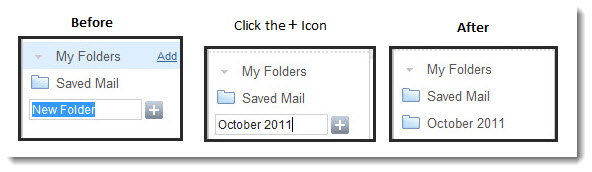
Folder Creation

3) Now we can select the mail we want to move to the folder.  These are the steps:  a) Click the small box next to the first email you want to move.  b) hold down your shift key on your keyboard, then click the box next to the last email you want to move to the folder. c) find your Action icon, and click the down arrow. d) click the name of the folder you created to move those mail items.

Click Action, then Click the folder name to move the email message

Note: The folder you created will show how many mail items are in the folder.

7 emails are in the folder


Classic AOL Mail: Organizing – Folders and Filters – AOL Help
.

I hope this is helpful 🙂 ….Please let us hear what your email tips are.  See you at the next Post!

Email Clutter: How to Organize and Tidy Up Your Inbox

My Email Helper

Wouldn’t it be great if you had a tool that would take care of your Inbox email clutter automatically by filing it into categories so that you could find it quickly when you need it again?  I bet,  chances are your mail is removed from your Inbox automatically to your ‘OLD MAIL’ folder, and you still haven’t found a quick way of locating it.

If you’re a Baby Boomer you probably started out using AOL email and have not switched because you’re comfortable with, and understand how to navigate in the AOL mail environment. However, although there are tools to organize email, most of us are filing those ‘precious’ e-mail items  right there with the newly received mail. I looked at some of the Help Contents in AOL, and decided on  guidelines I think you might find useful.  At the end of this Post you can click the link provided in the Note box to get  detailed descriptions on how to do other sorting options in AOL email.

However, if you are not an AOL email user try applying the SORT technique shown below to your email program, or search your email Help for guidance.  I guarantee once you learn how to use SORT, your Inbox will be easier to manage.

 • Before I cover how to  file email items into Folders, I suggest you become familiar with the SORT option. Below is a quick tip on how to manage your mail items: Using Sort

For this example we will sort using the most often viewed columns when reading mail:  From, Subject, and Date:  Click the image below with your mouse  to see a larger illustration.

Click a column heading to sort by that category

After you complete those sorts, try  clicking the paper clip icon,  and see what happens. 

See you at the next Post when I will cover how to file those emails into Folders. I suspect by the next Post you will have learned other features about sorting your email.

I hope this is helpful 🙂

Note:  Sorting your email list makes it easier for you to prioritize your emails. You can sort the messages in your online mailbox by email address, time of arrival, subject heading, and type of email (email from people you know, from bulk senders, and unknown senders). Your emails in Classic AOL Mail are automatically sorted by date, but did you know you can also sort your messages by sender, read or unread messages, and emails that you’ve flagged?
For more detail click the link below.
via How do I sort emails in Classic AOL Mail? – AOL Help.

For Older Workers: How To Update Your Computer Skills

What is your computer skills IQ?

Being an older worker does have some competitive advantages.  It also brings valuable resources to the working environment. However, as older workers we should  prepare to hone our job working skills for today’s job market. Many office environments use Microsoft applications. Word, Excel, PowerPoint, and Outlook e-mail are just some of the programs used by office professionals today.

I have come to rely on some very helpful sites to aid me in acquiring competitive skills as an office professional. To support you in finding resources fordeveloping new skills, or upgrading your skills, I have connected my Blog to some of the best HELP around for developing computer skills.

Those sites are listed at the Blogroll on the right side of the screen. All you have to do is click the link, and you will be able to explore what the website has available to help you become proficient or even an expert using various software skills.

Below is a brief description of what those sites can offer.

Certiport.com

Certiport offers individuals current and relevant digital skills and credentials for the competitive global workforce. These solutions include the official Microsoft Office certification programs, the Microsoft Technology Associate certification program, the Adobe® Certified Associate certification program, the CompTIA Strata™ IT Fundamentals, the Intuit QuickBooks Certified User certification program and the Certiport Internet and Computing Core Certification (IC³®), delivered by more than 10,000 Certiport Centers worldwide via Certiport | Home – Certify to Succeed.

ShaunaKelly.com

I have found this word processing help the best of the many sites I visit frequently.  If you are a beginner, intermediate, or advanced WORD user, I believe you will find this is a very useful resource.  Just click the link on my Blogroll to use the Word help.


Your body posture is important!

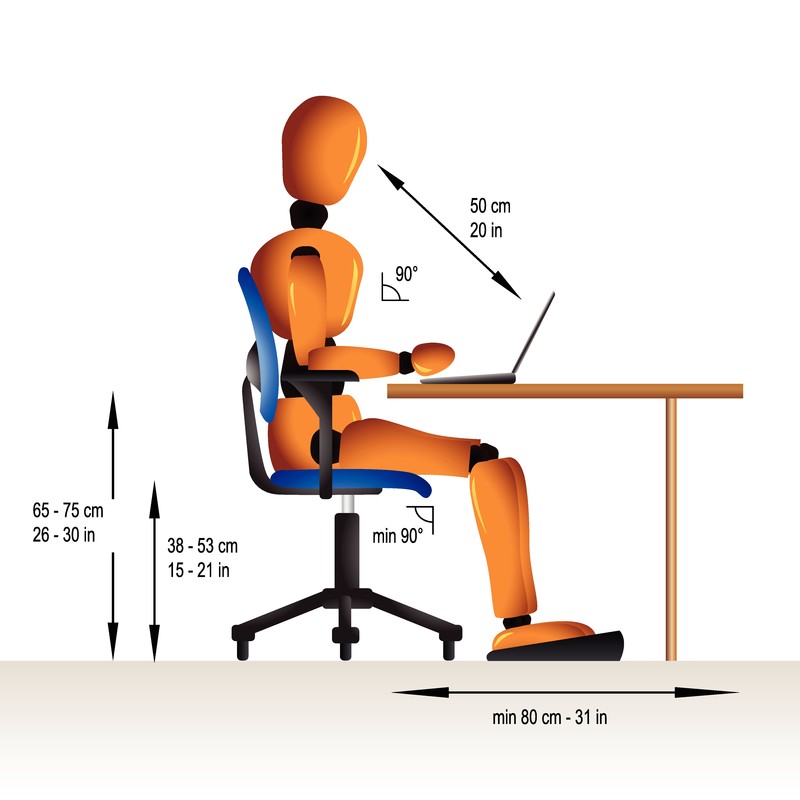
ERGONOMICS I have covered the reasons for having the correct body language at the computer.  Some of you may have already suffered from the stress of working at a computer device all day.  If you are new or an experienced computer user, it is important to have the correct posture when working. If you can’t manage the best posture, you may at least find the exercises provided at this site will help you with relieving some discomforts.  Just click the body language link on my Blogroll.

I hope this is helpful.  See you at the next Post!   🙂

A Tribute to Steve Jobs

I should not  write my post this week without first acknowledging the passing of Steve Jobs.  I have often expressed my delight with the ‘i devices. However, what I believe is most extraordinary about Steve Jobs  is that he connected an entire universe with his inventions. All over the world people enjoy Apple products.  He was Apple’s Rock Star.  Every time he brought us something new, the response was phenomenal!  We couldn’t wait to buy it, learn to use and enjoy it.  And, the newest invention was immediately at the top of the computer charts! 🙂

Steve Jobs infused his creations with love and care, and we were the recipients of that love, and care.  So, as I think about Steve Jobs, I’m feeling thankful that I have experienced his passion, his genius, his drive for perfection through his inventions.  Yes, there are other inventions, but the way I see it he was the first to take the computer experience and convert it to personal entertainment with a business component.
He engendered diversity on a grand scale:  young, old, various cultures, languages, professions.  The list goes on and on. His influences and his footprints will remain forever on our universe.

Thank you, Steve Jobs, for helping us to connect worldwide through your visions!

Some people positively change the Universe !

Why I Blog

Thoughts from: @autocreate740

I invited someone to look at my Blog recently, just to tell him that I am doing something new.  He happens to be somewhat computer literate. When I heard back from him, he wanted to know what he was looking for.

Ha!

After receiving that response, I wondered how many Bloggers are out there, who are feeling lonely, and become discouraged about blogging because NO One is reading, or viewing, let alone, commenting, or ‘liking’ their Blogs.

I’ve been blogging since May 2011.  As of October 1, I will have started my 6th month, so it seems right to check what I am doing at Tech4Boomers.com, and to confirm for myself what I think I’m doing.

I have been interested in technology, after leaving a career in film and television, for about 25 years now.  My true ‘likes’ are Outlook Email, and oddly enough,  Word Processing.  I am an iPhone/iPad ‘groupie’. I also dabble in PowerPoint. I Love Apps!

Blogging is my newest avocation; I enjoy learning about this new (for me) technology. It’s a wonderful challenge to acquire a new computer skill, and it seems to be very popular with young people, and that’s always good.  I mean staying in touch with the young people; they are our future. 🙂

I am a Baby Boomer.  Most of my friends are trying to get away from the computer, and would rather not learn yet another thing that involves a computer challenge.  I truly like WordPress.com. And, that I was able to start blogging for free! was truly a treat.  🙂

Blogging provides a way for creativity on my own terms.  I can cover the topics I find interesting, put my artwork in, say it the way I feel I want to, and that gives me a wonderful feeling of freedom.

Blogging keeps me informed and connected with an outside world.  I find it intriguing to read what others are thinking.  Blogging is a universal ‘connection’ tool.

◊ ◊ ◊ ◊ ◊ ◊ ◊ ◊ ◊ ◊ ◊ ◊ ◊ ◊ ◊ ◊ ◊ ◊ ◊ ◊ ◊ ◊ ◊ ◊ ◊ ◊ ◊ ◊ ◊ ◊ ◊ ◊

What is Tech4Boomers designed to do?  Here’s what I think briefly:

It’s an electronic newsletter, where, once a week I post something I think  is worthwhile knowing. It’s also a reference guide for me 🙂

It attempts to simplify technical issues for my generation, and younger people who want to learn something about Twitter, Linkedin, WiFi, 3G, iPhones, iPads,  Blackberry phones, Apps, and various other computer related topics.

It’s designed to give a knowledge  level to those who are not ‘computer savvy’, but would like to know more.

It’s designed to help others when possible.

It’s fun for me!

In addition to providing a platform for me to improve my skills overall, and blogging skills in particular, this activity allows me to introduce friends and family to the blogging experience:  What is it? How does it work? What is its reach, and knowing is it a worthwhile undertaking.

So here’s the conclusion: I’ve decided to continue! 🙂  I hope this was helpful in further clarifying what Tech4Boomers is about.

See you at the next post !