
Tech Savviness… Email Savviness … & More

FBI Deadline for DNS CHANGER IS

JULY 9, 2012  

♣  ♣

Email Savviness:

How many of us have thought that the ‘rules and regulations’ implemented by our workplace management is put in place to  protect us? I bet most of us are grumbling about the Internet restrictions imposed by management at our workplace.  Did you know there is an ePolicy Institute?  You can find out what the ePolicy Institute thinks is worth “protecting employees from”.  What are eRisks, eRights, eResponsibilities? Can employers ‘legally’ read your email? Is it OK to email your kids during work hours? What is ‘social engineering‘?  The next time you have an opportunity you may want to visit the website.  There is much to learn.  In addition they have free literature.  Click this link to go to the website-  Search the ePolicy Institute.

♣  ♣

Tech Savviness:  Router Passwords

In a previous tech4boomers post we discussed the importance of using up-to-date equipment.  In particular old routers, which may not be providing you with the best service.  Equally as important is knowing how to protect your home network from unauthorized access.  PASSWORDS are very important when it comes to protecting your Network.   Below are some guidelines I found in an article recently. Click on the link provided to get the full details.

Though no password is foolproof, you can build a better password by combining numbers and letters into a complex and unique string. Remember to change both your Wi-Fi password (the string that guests enter to access your network) and your router administrator password (the one you enter to log in to the administration console–the two may sometimes be the same). via How To Lock Down Your Wireless Network | PCWorld.

♣  ♣

Healthful Computing:

iPad users will want to pay attention and be careful of their body posture when using this device.  Read what the article I found in the New York Times Science section recently had to say:  The scientists studied 15 experienced tablet users in their natural viewing positions. Placing a tablet on the lap created the greatest strain, the researchers found, because it forces the user to look down at a steep angle, causing head and neck flexion – a particular hazard for users who are doing a lot of typing. via WELL – Really? The Claim – Using an iPad can strain your neck. – Question – NYTimes.com.

♣  ♣

BuddyTV Guide App

According to what I have read this APP is worth looking into 🙂

  • Speedy
  • Find what you want to watch in 20 seconds or less
  • Tailors to your TV tastes.
  • Even changes the channel for you.

♣ ♣ ♣

I hope this is helpful 🙂

Getting a Grip on AutoCorrect!

It’s downright embarrassing!  Causing my professionalism to be questioned!  Yes, you know what I’m talking about  #@%!AutoCorrect!

Someone is putting their words in my messages! Recently I sent a message discussing something I thought showed that I was comprehending the subject and in the middle of the sentence was the word ‘toot!   The list is long of those AutoCorrect/Autocomplete moments; however, it seems we can’t live with, or without it. Just in case you want to remove it or venture into finding out how to control it more to your liking, here are some tips that i found for Android, iPhone, and iPad users.

First, let’s review some of the selections for inputting information with the keyboards provided by your mobile devices.  For example, you may find Swype easier to input text on your mobile device. Here’s a brief description:  Swype   is an input method for touchscreens where the user enters words by sliding a finger or stylus from letter to letter, lifting only between words. It uses error-correcting algorithms and a language model to guess the intended word. It also includes a tapping predictive text system in the same interface. Swype is designed for use on touchscreen devices with a traditional QWERTY keyboard. via Swype – Wikipedia, the free encyclopedia.

According to Swype, it’s a faster way to input messages.  Maybe this will help you to control those AutoCorrect errors (?) Swype provides basic/advanced training guidelines, which you can get at this link: http://www.swype.com/

Android users can find a Tutorial for Swype  right on their mobile phones.  In addition, there is Swype Help with more details.

To find the tutorial  take the steps below:

  • Select Settings
  • Select Language & keyboard
  • Select Swype settings
  • Scroll down to find Help
  • Choose Tutorial

If you decide you want to stay with “Touch input” I suggest you take the Tutorial for how auto-correction works.

Use the steps below to find the tutorial

  • Select Settings’
  • Select Language & keyboard
  • Select Touch input
  • Select Tutorial

Touch input users may also want to consider adding their often used personal acronyms to their Personal dictionary, which is an option available right beneath the Tutorial. Choose the Edit personal dictionary, and add your words.

♦  ♦  ♦  ♦  ♦  ♦  ♦  ♦  ♦  ♦  ♦  ♦  ♦  ♦  ♦ ♦  ♦  ♦  ♦  ♦  ♦  ♦  ♦  ♦  ♦  ♦  ♦  ♦  ♦  ♦

iPhone users can check out Business Insider, which has some suggestions for “teaching” your phone new words among other ideas.  http://www.businessinsider.com/how-to-fix-iphone-auto-correct-2012-2#

iPad users can turn autocorrect off using the settings options.

I hope this is helpful.  See you at the next Post 🙂

Eye Ergonomics

I am certain that many of you spend hours working on  your desktops, laptops, mobile phones, then there is  Twitter, Facebook, Email,  Excel, Word, APPS, etc. etc.  Have you considered that all of this constant viewing of computer screens during the many hours of a given day  is having an impact on the ability for us to focus with our eyes?  I know I have not been thinking about the strain, although I have suffered from headaches. I have also had blurred vision during the course of the day, along with  neck and back pain.  That’s why I was interested to learn about a New York Times article by Mickey Meece, which offers solutions for eyestrain caused by computers. via Easing Eye Strain With the Right Lenses – NYTimes.comAfter reading the article, I thought it would be helpful for you to know what else I found out, so here is my synopsis.  As always you can click on the links provided for more details.

Computer vision syndrome (CVS) is a temporary condition resulting from focusing the eyes on a computer display for protracted, uninterrupted periods of time. Some symptoms of CVS include headaches, blurred vision, neck pain, redness in the eyes, fatigue, eye strain, dry, irritated eyes, double vision, polyopia, and difficulty refocusing the eyes. These symptoms can be further aggravated by improper lighting conditions (i.e. glare or bright overhead lighting) or air moving past the eyes (e.g. overhead vents, direct air from a fan).via Computer vision syndrome – Wikipedia, the free encyclopedia. Presbyopia is a condition where the eye exhibits a progressively diminished ability to focus on near objects with age…The first signs of presbyopia – eyestrain, difficulty seeing in dim light, problems focusing on small objects and/or fine print – are usually first noticed between the ages of 40 and 50 . . .via Presbyopia – Wikipedia, the free encyclopedia.

What can you do about eye strain?

In the article by Mickey Meece he discusses special purposes glasses which enhance your ability to see the computer with a sharper focus.

Here’s a list of suggestions I found at the Ergonomics website:
How To Prevent or Treat Eye Strains?

  • Take breaks by getting away from the computer desk for a few minutes
  • Eyes need to focus at different distances from time to time. It’s a good idea to follow the “20/20 rule” — every twenty minutes, look twenty feet away for twenty seconds
  • Every 20 minutes, blink 10 times by closing your eyes as if falling asleep (very slowly). This will help rewet your eyes.
  • Blinking is very important when working at a computer; it rewets your eyes to avoid dryness and irritation
  • Massaging the temples with your eyes closed for a minute may alleviate the symptoms
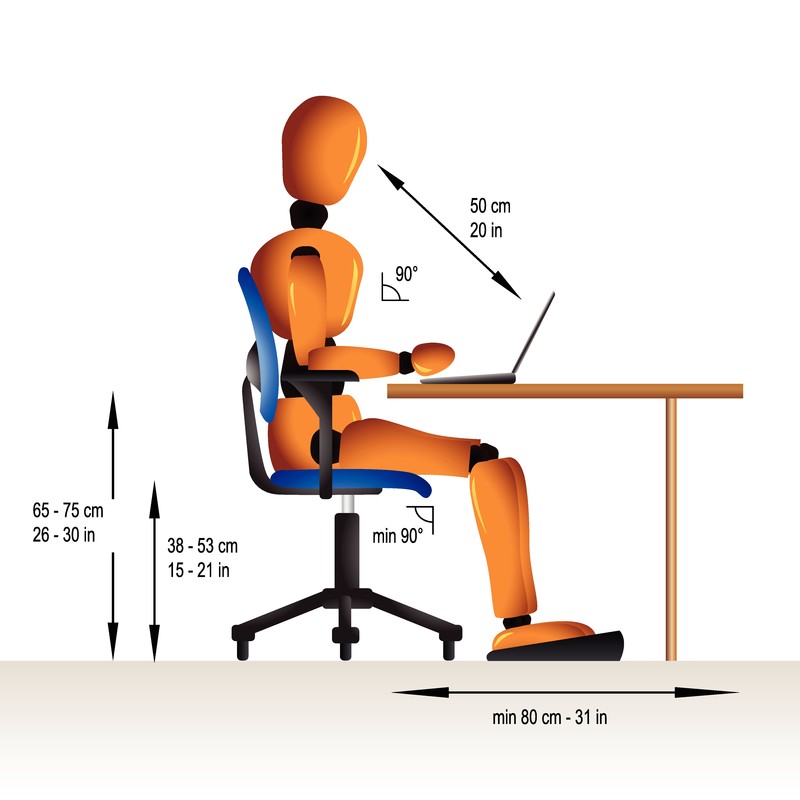
  • It is recommended that the viewing distance be around 45 inches away at horizontal eye level or 35 inches away with a 30-degree downward gaze angle
  • The general rule is to keep viewed material as far away as possible, provided it can be read easily. There is no such thing as sitting too far away from the screen as long as you can comfortably read what is on the screen! And don’t forget that you can increase the font on the screen by zooming into the webpage, document or changing the resolution on the screen.
  • keep viewed objects at about the same distance if you have to look back and forth a lot eg. Reading paper documents and looking at the screen to perform a task
  • Looking downward means more of the eye surface is covered by the eyelid, and two other things happen: the eyes unconsciously blink more, and they produce more lubrication

Computer glasses put the optimum lens power for viewing your computer screen right where you need it for a clear, wide field of view without the need for excessive focusing effort or unhealthful postures. The simplest computer glasses have single vision lenses.

a. This lens power relaxes the amount of accommodation required to keep objects in focus at the distance of the computer screen and provides the largest field of view

b. The lenses can be tinted to remove reflections of light from the front and back surfaces of your lenses that can cause eye strain. They also reduce glare caused by harsh overhead lighting found in many office environments. Read more about these unique computer glasses via Computer Eye Strain – Eyestrain.

I hope this is helpful! 🙂


The Scoop About Online Snooping

Just when you thought you understood how to handle the privacy protection issues, they pull us right back in. That’s why many of us are worried about how Google’s new privacy policy will affect our privacy online, and what we can do to have a say about how information is currently collected about us, and how it is manipulated.  Last week we delved into the use of  various tools provided by Google to allow us to put a stop to some of the information being collected about us in order for Google and other ‘first party(cookie) sites”  like Amazon to sell Ads.  For example,  consumers may not know that when they  go directly to first party sites (e.g. Google, Amazon) data can still be collected on them before they are given the option to “Opt-Out”.  It appears that the “Opt-Out” option works best with third party sites. Read more about how to Opt-Out and what controls you really have  at:  Network Advertising Initiative.

♦ ♦ ♦ ♦ ♦ ♦ ♦ ♦ ♦ ♦ ♦ ♦ ♦

I have listed some of  the topics reviewed by  Associated Press via Google’s new privacy policy: 6 key issues you need to know | NJ.com.

  1. Can Gmail, Google Plus, YouTube, users prevent personal data from being collected?
  2. Which Google services are covered by the privacy policy?
  3. What role does the U.S. Federal Trade Commission have in overseeing Google’s treatment of personal information?

♦ ♦ ♦ ♦ ♦ ♦ ♦ ♦ ♦ ♦ ♦ ♦ ♦

And, do not forget to check out what Mozilla’s Firefox has available to avoid tracking  in their new release.

Firefox for Android includes the Do Not Track privacy feature in this release, making Firefox the first browser to support Do Not Track on multiple platforms. Mozilla created Do Not Track to give users more control over the way their browsing behavior is tracked and used on the Web. The feature, which lets users tell websites that they wish to opt-out of online behavioral tracking, is now easier to find in Firefox Preferences. via Mozilla Delivers New Version of Firefox – First Web Browser to Support Do Not Track on Multiple Platforms | The Mozilla Blog.

I hope this is helpful 🙂

APP Therapy?

As Benedict Carey writes in Science Times . . . a new generation of apps may soon offer psychotherapy on the go. In the past few years, researchers have been testing simple, video-game-like programs aimed at relieving common problems like anxiety and depression. These recent results have been encouraging enough that investigators are now delivering the programs on smartphones — therapy apps, in effect, that may soon make psychological help accessible anytime, anywhere, whether in the grocery store line, on the bus, or just before a work presentation.via Coming to Your Smartphone: Therapy Apps – NYTimes.com.

* * * * * * * * * *

These days, many of us complain about the 24 hour response lives we are leading due to Smartphones, iPads, Laptops, Twitter, Facebook, Email, Internet, the SOCIAL MEDIA THING!  We want a breakNow it seems, even our relaxation and therapy will  come from a computer!  The ‘Relaxation Response‘ is now available in various  APPS.  No Kidding!

The Relaxation Response,  a term coined by Herbert Benson in a book of the same name, where he describes his research into the effects of meditation via Relaxation response – Wikipedia, the free encyclopedia.

I am eager to see where this will lead us in the future since it seems  there is a serious discussion about the potential help these APPS may offer. The following excerpt is a brief description of what to expect. You can click the link at the end of this short description to read the full details.

♦ Objective: This exploratory study examined the potential of mobile phone technologies to broaden access to cognitive behavioral therapy techniques and to provide in-the-moment support. ♦ Methods: We developed a mobile phone application with touch screen scales for mood reporting and therapeutic exercises for cognitive reappraisal . . . and physical relaxation. via JMIR-Mobile Therapy: Case Study Evaluations of a Cell Phone Application for Emotional Self-Awareness | Morris | Journal of Medical Internet Research.

* * * * * * * * *

Android cell phone users will want to take this opportunity to check out some of the APPS already on the market to help you with relaxation techniques available for Android cell phones.  Some favorites appear below, and are available, with many others at this  link  http://www.androidfreeware.net/tag-relaxation.html

Rainy Jungle – A rainy jungle view over a river and a stimulating hail of the raindrops for your relaxation or deep sleep.
Guide to Psychotherapy – Learn The Basics About The Healing Power Of Psychotherapy.
* * * * * * * * *
iPhone and iPad users can find a great choice for meditation and relaxation APPS by clicking the links below.
I hope this is helpful 🙂   PEACE!


Using HotSpots … Guidelines…

At the last post we offered some suggestions for using HotSpot software.  Boingo WiFi and Wi-Finder appear to be very popular Mobile Apps. Both iPad and Android  have this App available for their mobile devices.  Boingo received  great reviews, both for ease of use and customer service.

Mobile applications, also called mobile apps, are software applications, usually designed to run on smartphones and tablet computers. They are available through application distribution platforms, which are typically operated by the owner of the mobile operating system, such as the Apple App Store, Android Market, and BlackBerry App World. Some apps are free, and others have a price.via Mobile apps – Wikipedia, the free encyclopedia.

Here are some of the details that caught our attention.  We suggest you use the links provided at the end of this post to get a complete review and guidance for each App.

When traveling to a new place check out the Wi-Fi access before you go.  This may help you decide on a hotel site, or a particular hotel (see below).

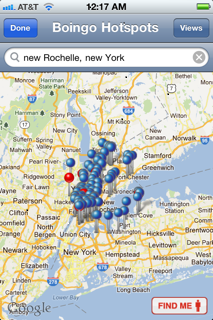
The Blue pins on the map show free hotspots; Red pins indicate Boingo hotspots.

To check where the hotspots are at the site you are traveling to, do the following on your mobile device:

1) Click the Boingo App Logo  2) Click Find Hotspots Near Me  3)  Type the  address, or city and state of the place you’re traveling to  4) When the Blue & Red pins show up, click the View button  5) click the List button  6) click Done, a list of locations will appear on your mobile device screen (see samples below). You can also click on a place to see more details (e.g., whether the hotspot is free).  Note:  Click the images below with your mouse to see a clearer picture.


Check out these great websites below by clicking the links for additional information:

  Boingo Wi-Finder for iPhone Review: Finding Hotspots Everywhere via Boingo Wi-Finder for iPhone Review: Finding Hotspots Everywhere

 ♦ Musings by Annelie Näs  Digital, and more digital – ideas, thoughts and reflections via Boingo Wireless Follow-Up: Special treatment for Blogging customers?.

I hope this is helpful 🙂 !


Are you in a HotSpot?

In the upcoming weeks we are going to have  short bursts of information on what HotSpots are.  For example Boingo Wireless and Boingo Wi-Finder, and where you can buy or download the  free service. Also, we will look at why you would use a paid service instead of a free one.

What is  a HotSpot?

A HotSpot is a site that offers Internet access over a wireless local area network with a router connected to a link to an Internet service provider. Hotspots typically use Wi-Fi technology (this was covered in a earlier post. Check the post listing if you want a detailed description).

Hotspots may be found in coffee shops and various other public establishments throughout much of the developed world. via Hotspot (Wi-Fi) – Wikipedia, the free encyclopedia.

What types of  Internet access services are available to use Hotspots?

Boingo Wireless is a paid service and provides Internet access

Boingo Wi-Finder is a free service and provides Internet access

Below is a brief summary of information found  at Wireless Internet Reviews.  You can click the link  below to read the full description and rating of each service.

Boingo Wireless has a network of Wi-Fi providers worldwide (100,000 hotspots globally).

AT&T has competitive pricing  for monthly Wi-Fi Hotspot subscription packages. It’s a good choice for travelers.

T–Mobile currently operates the fourth largest network in the United States. They have plans available of their network Wi-Fi Hotspots.

Click the link for detailed information: via Best Rated Subscription Hotspot Services | Wireless Internet Reviews

We will have the chance to discuss other findings about HotSpots at the next post.

I hope this is helpful! 🙂

Free SMS – Take advantage of what’s available!

Short Message Service (SMS) is a text messaging service component of phone, web, or mobile communication systems, using standardized communications protocols that allow the exchange of short text messages between fixed line or mobile phone devices. SMS text messaging is the most widely used data application in the world, with 2.4 billion active users, or 74% of all mobile phone subscribers.[citation needed] The term SMS is used as a synonym for all types of short text messaging as well as the user activity itself in many parts of the world. via SMS – Wikipedia, the free encyclopedia.

Some common uses of SMS are things you may already be familiar with,  such as:   Twitter,  Reminders, and Calendar on your phone.

In last week’s post I asked you to think about your 2012 Technology Budget.  Many of you use SMS.  Some plans have unlimited texting, but what are you paying for that service a month? Are you paying separately for each message, or  (estimate for 100 messages @ 5.99/month), or maybe you are paying $30.00/month).  Either way, those dollars add up.  For 2012, think about whether in some instances you could use SMS from one of the free services listed here.  Maybe it will help you cut those costs.  I recently used  Textfree from Pinger.com, and was pleased  with how easy it was to set up an account. I also liked the support that was available. Below is a synopsis of what Pinger thinks about their service.

What is Pinger? Pinger makes texting and talking free. Our market-leading communications products have been downloaded by millions of iPhone, iPod touch, iPad and Android users around the world. Who is Pinger? Pinger is loaded with inventive people who enjoy creating consumer products and services that make a difference in people’s lives. via Pinger makes texting and talking free..

Here’s a tip: After you decide which free SMS service you want to use, tell your text community about your new telephone number.  Ask them to put that number in their Contacts folder so they will recognize your phone number by name when they receive a text from you.

Listed below are other sites I visited.  There is a brief synopsis, of how the service works, and a link at the end of the paragraph that you can click.  The link will take you to the sign up screen.  I hope this is helpful 🙂

♦  ♦  ♦  ♦  ♦  ♦  ♦  ♦  ♦  ♦  ♦  ♦  ♦  ♦  ♦  ♦  ♦  ♦  ♦  ♦  ♦  ♦  ♦  ♦   ♦   ♦   ♦ 

Free Text Messages

1) OnlineTextMessage.com allows free text messaging. You can send free SMS text messages to anyone with a SMS or text message enabled mobile phone. You no longer have to pay to send quick SMS or text messages as long as you have access to the Internet. All major carriers are supported: Verizon, AllTel, AT&T, Cingular, TMobile, Sprint, SunCom, and Nextel. Please bookmark our site and make us your home for free online text messaging and SMS services. You can also add it to your MySpace Profile or Google! Bookmark Us.via Free Text Messaging – Send Free Text Messages.

2) Text’em The messages that you send and receive using our website are free. Check with the recipients of the text messages, is it free for them?

Regular rates apply, please check with the recipients before sending a text message to them. You can send text messages to any of the major United States cellular services. Click the link.

via Free Text Messaging – Send and Receive Free Text Messages – Text’em.

3) MobiClient
Broadcast One Message to Many Recipients.  Need to notify multiple co-workers of a change in plan? With MobiClient’s unique Broadcast feature, you can send one message to all those recipients at once.Learn More

via MobiClient – Free SMS Text Messaging from PC to Mobile Phone Software Online Service. Free download Sending SMS. –.

There are many of these free SMS services.  If you have one that you use and like, don’t hesitate to share.  See you at the next post!  🙂

For Older Workers: How To Update Your Computer Skills

What is your computer skills IQ?

Being an older worker does have some competitive advantages.  It also brings valuable resources to the working environment. However, as older workers we should  prepare to hone our job working skills for today’s job market. Many office environments use Microsoft applications. Word, Excel, PowerPoint, and Outlook e-mail are just some of the programs used by office professionals today.

I have come to rely on some very helpful sites to aid me in acquiring competitive skills as an office professional. To support you in finding resources fordeveloping new skills, or upgrading your skills, I have connected my Blog to some of the best HELP around for developing computer skills.

Those sites are listed at the Blogroll on the right side of the screen. All you have to do is click the link, and you will be able to explore what the website has available to help you become proficient or even an expert using various software skills.

Below is a brief description of what those sites can offer.

Certiport.com

Certiport offers individuals current and relevant digital skills and credentials for the competitive global workforce. These solutions include the official Microsoft Office certification programs, the Microsoft Technology Associate certification program, the Adobe® Certified Associate certification program, the CompTIA Strata™ IT Fundamentals, the Intuit QuickBooks Certified User certification program and the Certiport Internet and Computing Core Certification (IC³®), delivered by more than 10,000 Certiport Centers worldwide via Certiport | Home – Certify to Succeed.

ShaunaKelly.com

I have found this word processing help the best of the many sites I visit frequently.  If you are a beginner, intermediate, or advanced WORD user, I believe you will find this is a very useful resource.  Just click the link on my Blogroll to use the Word help.


Your body posture is important!

ERGONOMICS I have covered the reasons for having the correct body language at the computer.  Some of you may have already suffered from the stress of working at a computer device all day.  If you are new or an experienced computer user, it is important to have the correct posture when working. If you can’t manage the best posture, you may at least find the exercises provided at this site will help you with relieving some discomforts.  Just click the body language link on my Blogroll.

I hope this is helpful.  See you at the next Post!   🙂

A Tribute to Steve Jobs

I should not  write my post this week without first acknowledging the passing of Steve Jobs.  I have often expressed my delight with the ‘i devices. However, what I believe is most extraordinary about Steve Jobs  is that he connected an entire universe with his inventions. All over the world people enjoy Apple products.  He was Apple’s Rock Star.  Every time he brought us something new, the response was phenomenal!  We couldn’t wait to buy it, learn to use and enjoy it.  And, the newest invention was immediately at the top of the computer charts! 🙂

Steve Jobs infused his creations with love and care, and we were the recipients of that love, and care.  So, as I think about Steve Jobs, I’m feeling thankful that I have experienced his passion, his genius, his drive for perfection through his inventions.  Yes, there are other inventions, but the way I see it he was the first to take the computer experience and convert it to personal entertainment with a business component.
He engendered diversity on a grand scale:  young, old, various cultures, languages, professions.  The list goes on and on. His influences and his footprints will remain forever on our universe.

Thank you, Steve Jobs, for helping us to connect worldwide through your visions!

Some people positively change the Universe !