
ZAAG Keyboard Function Keys Defined

Hmm ZAAG Keyboard Function (F) Keys

I trust those ZAAG Keyboard demonstrations that were in last week’s Post were helpful.

Now that you have had an opportunity to see the ZAAG  keyboard YouTube demonstrations, I thought I would give you a short description of the function keys for your reference.  These shortcuts can save you a lot of time when you are working on your iPad.


I hope this is helpful 🙂

Twitter for Android Phone Users

As I searched for the best Mobile Twitter App for Android, what I discovered is the best app to use is the one endorsed by Twitter itself.  This app is free of charge, and can be found at the Android Market. Just click the link below.

  Twitter – Android Market


After you install the Twitter app, I suggest that you use the guidelines I found written by Dan Gookin, which explain how the program works for the Android phone.  These guidelines will be least confusing, and give illustrations, which explain the various parts of the screens (please don’t take the name of the article personally).  I have found articles by Dan Gookin, and by other authors in the ‘Dummies” book series, very helpful. Click the line after the word via.

How to Use Twitter on Your Droid X

By Dan Gookin

You can use Twitter through your Droid X to share your existence with others or simply to follow what others are up to or thinking. You can create a Twitter account by using your Droid, but it’s a lot more work that just using a computer. After you create a Twitter account, use the Twitter app on your phone to view Twitter updates or to tweet.

A good Twitter app was developed by the Twitter people themselves. The Twitter app is free and available at the Android Market.

The Twitter application provides an excellent interface to many Twitter tasks. The two most basic tasks, however, are reading and writing tweets.

via How to Use Twitter on Your Droid X – For Dummies.

*******************************************************************

For those of you who want to do a bit more research, check out the article below by TechShout, posted August 2011.

8 Best Twitter apps for Android phones to download – TechShout.

*******************************************************************

This post completes the sessions for using Twitter on your cell phones.  I hope this is helpful 🙂

Wow, I miss those good old phone days!

The Good Old Phone Days!

BOOMER Trivia

I was just thinking about how much I miss the good old phone days. Don’t you?  I remember those cute phone booths, and waiting in line to use one. Wasn’t that so much fun? How about the other great things we no longer get to experience with the older phones.

Cheap Calls !

Let’s just think of a few: Remember those 10 cent calls, and the ‘friendly operator’ who would come on the line and tell you a nickel was due if you wanted to continue the call.  Who reminds you that you’ve gone over your limit these days before it’s too late?

Party Lines !

What about: ‘Party Lines’?   You could get a phone and share the cost with a neighbor.  It’s possible that some  of us did not even know who the other party person was we were sharing the line with. And guess what, mostly people did not eavesdrop on your conversations!

What a good workout!

And those phones never broke! They were so heavy, you could get a workout and talk at the same time.

  What do you miss about the good old phone days ?
See you at the next Post 😉

How to use Twitter from your BlackBerry – Simple Help

How do I find a Twitter mobile app?

As I mentioned in last week’s post, Twitter mobile apps are probably among the more widely used for sending Tweets, and for keeping up-to-date with what’s happening on Twitter.  This week we cover how to use one of the most popular Twitter mobile apps recommended by Simple Help, a blog I often go to for information about various Social Media guidelines.  Simple Help provides easy to follow  illustrations, which I expect you will find useful in loading a Twitter app on your Blackberry phone.    Be aware:  these guidelines assume that you understand how find the web browser on your Blackberry device.  If you are not familiar with these techniques, now would be a good time to check out the manual for your phone.  You can find  Blackberry manuals at this link –  BlackBerry Smartphones – Manuals and Guides.

Twitter for Blackberry Users

Loading Twitterberry

This tutorial will guide you through every step of installing and using TwitterBerry, arguably the most popular Twitter client for BlackBerry devices.

1. First up, launch whatever web browser you use on your BlackBerry. Head over to http://orangatame.com/ota/twitterberry (or http://bit.ly/jE4rM – which is just a shortened version of the same link). After scrolling through the text, select the Download Now button. Then when prompted, click the Download button on your BlackBerry screen.

via How to use Twitter from your BlackBerry – Simple Help

I hope this is  helpful

Twitter via Smartphones: An Introduction

How do you network socialize?

In this week’s post we are focusing on Twitter Mobile Apps. As we discussed in a earlier post, mobile apps allow you to use the Internet and social media environments.


Here is a description I found, written by Amy Gahran, which explains mobile apps.  Please click on the link to her website for a more detailed description.

What are mobile apps?

A mobile app is software that runs on a handheld device (phone, tablet, e-reader, iPod, etc.) than can connect to wifi or wireless carrier networks, and has an operating system that supports standalone software.  via What’s a mobile app? – contentious.com.

Please note:

In upcoming weeks I will continue to provide  you with links to sources that  I rely on to bring you technology information.
In computing, a hyperlink (or link) is a reference to a document that the reader can directly follow, or that is followed automatically.
via Hyperlink – Wikipedia, the free encyclopedia.

How to use Twitter on your smartphones will have links to  Twitter Help, and  Simple Help. These are sources that I use for information frequently. However,  due to the popularity of the Simple Help site, there may be numerous advertisements on the page.  Nevertheless, the illustrations will be very easy to follow.

Also, don’t be discouraged with the new techniques required to view the information. These built-in transitions  will give you some ‘hands-on” training in navigating back and forth to more than one blog.. That’s part of what it’s all about, right?

Remember: tech4boomers is focused on helping you acquire, and familiarize yourself, with  the skill sets necessary to operate in a social media environment.. Enjoy the transitions…. Here we go…

Twitter for iPhone: An Introduction

Users who are getting started with Twitter for iPhone often have concerns about the following:

1. Where do I find the Twitter for iPhone application?

2. Will Twitter for iPhone work with my iPhone OS?

3. What’s new in the current version of Twitter for iPhone?

4. I need help with Twitter for iPhone!

5. I’m having trouble with an older version of Twitter for iPhone.

6. I want to know more!

Where do I find the Twitter for iPhone Application?

From your iPhone, click the App Store icon, type ‘Twitter’ into the search, and select Twitter for iPhone from the results.

Ok folks take the next step. Click the link below for detailed illustrations and guidelines.  🙂

via Twitter Help Center | Twitter for iPhone: An Introduction.

***************************************************************

In coming weeks we will focus on how to use Twitter on the Blackberry, and Android Smartphones.

See you next week 🙂 !

5 Great Twitter Apps For the iPad – Simple Help

FYI

For Boomers who use an iPad ..♦.. FREE TWITTER APPS !

  • Tech4Boomers Intro to Twitter Sessions 1-4 illustrated how to use Twitter on your PC.
  • Twitter for iPad  is  a ‘mobile app‘.
    {It is a term used to describe Internet applications that run on smartphones and other mobile devices. Mobile applications usually help users by connecting them to Internet services more commonly accessed on desktop or notebook computers, or help them by making it easier to use the Internet on their portable devices.}via What is mobile application? – A Word Definition From the Webopedia Computer Dictionary.
  • I visited a website recently that has some of the best instructions I have seen on-line. Take a look at the suggestions made for iPad Twitter. The illustrations are very clearly presented for iPad users to understand. The instructions are brief, and easy to follow. 🙂

To view the illustrations, click on the link below.

Twitter is quickly becoming one of the main social media services to promote your brand, sharing interesting links, and keeping in touch with others. Here we’ll take a look at 5 free Twitter apps for the iPad so you can tweet while on the go. Official Twitter iPad . The first one we’ll look at is the official Twitter app for iPad. It works great, but the user interface is unique compared to using Twitter on your site.

via 5 Great Twitter Apps For the iPad – Simple Help.

Wi Fi, 3G, 4G, Data Plans ? So many decisions! What’s a person to think?

It’s all so complicated! 

How does one make decisions about using cell phones; what service should you sign up for? Why do you need a data plan anyway?

AT&T pointed out recently, 200MB of data gives you the capability to send and receive 1000 e-mail messages no attachments and 150 e-mails with attachments, view 400 Web pages, post 50 photos on social media sites, and watch 20 minutes of streaming video.

via AT&T’s New iPhone Data Plans: Pros and Cons | PCWorld.

I cyber-searched’ for answers to these questions. Hopefully, my excerpts will assist you in understanding what you require and how to make decisions about your cell phones and data plans. Also, there will be links to the websites where I found information so that you can research more thoroughly, should you want to do so.

                                               ***********

What is WiFi?  Wi Fi is short for Wireless Fidelity and..?     🙂
According to Dictionary.com, wifi:wireless local area network: a local area network that uses high frequency radio signals to transmit and receive data over distances of a few hundred feet.

What is 3G? 3G is an umbrella term for a collection of technologies that make up the third generation of cellular data networks. These standards allow cell phones (and other devices capable of connecting to a cellular network) to send and receive data at speeds comparable to cable or DSL. via In A Nutshell: What Is 3G?.

What is 4G? 4G, an acronym for fourth-generation wireless, is a technology that will transform wireless communications in a completely new way. It is also known as “beyond 3G,” since it provides a comprehensive and secure IP (Internet Protocol) solution. Users will enjoy high quality streaming video and “anytime, anywhere” voice and data at a much higher speed than previous generations. via What is 4G?.

Other things you should know:

Notes:

* While some Internet Service Providers offer both 3G and WiFi internet, they usually consider them separate services and require separate subscriptions.

* 3G is almost always more expensive than WiFi connected to a fixed service, so when WiFi is available – use it!

* Most 3G Service Providers offer a USB modem with their subscription services at a cost.

* 3G can be quite fast, but is in most cases worse than WiFi.

* Other wireless technologies also exist.

via Cryptech V2 » Blog Archive » The Difference Between 3G Mobile Internet and WiFi Wireless Networks.

  Do you need a data plan?

The first thing you have to do is to guesstimate how much data you think you’ll use. Two gigabytes of data per month seems to be the magic cut-off for most carriers. The vast majority of customers–98 percent, according to AT&T–use less than this each month. Average smartphone subscribers are using roughly, 400 MB of data per month, according to Validas, which recently analyzed a year of consumer phone bills from all four major carriers.

A couple of carriers, AT&T and T-Mobile, offer 200MB plans for low-data consumption. The lowest tier of service that Verizon Wireless offers is 2GB. And Sprint only offers an unlimited data plan for its smartphone customers.

But as you can see these plans aren’t tailored precisely for average usage. So most smartphone subscribers will need more than the 200MB plan but less than 2GB.

via Ask Maggie: Help! These data plans are too confusing | Signal Strength – CNET News.

All the major carriers offer tools on their Websites to help you estimate your usage. So I suggest checking that out to get a sense of what you think your usage will be. Here’s a little guide put together by Verizon Wireless that should give you an idea of how much data certain activities eat up:

* Email (text only) = 10KB

* Typical Web Page Lookup* = 1.5MB

* Audio Streaming = 40MB/hr

* Lo-Res Video Streaming = 200MB/hr

* Hi-Res Video Streaming = 400MB/hr

* Digital Photo download/upload (Hi-Res) = 1MB

$$$$$$  What will it Cost?

 The next thing to consider is price. T-Mobile’s 200MB tier is $10 a month. The good thing about its service is that if you go over your limit, it only slows your service. This means you aren’t socked with additional overage fees. AT&T’s 200MB service is $15 a month. But if you exceed this limit, your service isn’t slowed or “throttled.” Instead, you’re charged more money for more usage.

via Ask Maggie: Help! These data plans are too confusing | Signal Strength – CNET News.

🙂   That’s all for now folks.   I hope this is helpful!

Intro to Twitter_Tech4Boomers_Session 4

Who’s your Twitter in-crowd?

On Twitter, it’s all about who and what you Follow.  Following is a huge part of what’s happening in this particular social universe.

‘Following’ is a personal choice.  A good place to start is with  ‘friends’ whom you already know, in your personal ‘social circle’, those who are also Tweeps.  In this way, they can guide you on how to send Tweets, and give you a sense of belonging to the Twitter community until you get comfortable with tweeting in a larger social network.  Ask your friends what their Twitter ID’s are.  Once you have the ID’s, you can search for them using the SEARCH field.  When you find an ID, click the Follow link.

                                    **********

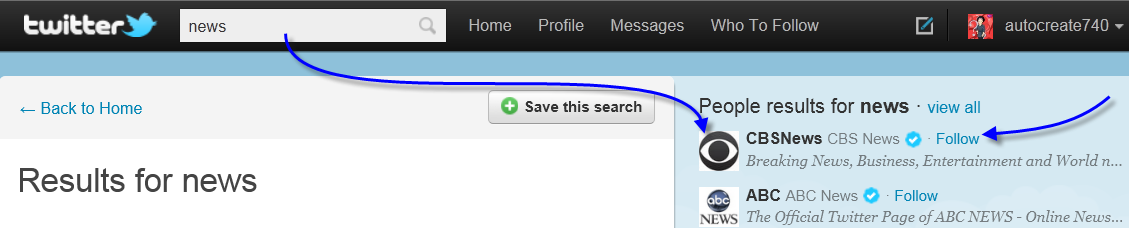
Another way to get started with Following on Twitter is to find people or publications that interest you.  When you find them, just click on the Follow button as illustrated below:

1 – In the SEARCH field, I have entered the word News.  On the right of the panel various news options appear with the word Follow next to them.

Click on the images to see a larger version.

2 – After you click on the Follow link.  Click the Back Home link to see your Timeline.

3 – When you are back at the Home screen, the News has been added to your Timeline along with everything else (Tweeps) you are following.

4 – If you do not want to Follow a particular choice (e.g., News)  anymore, type News in the search field, click the magnifying glass to start the search.  When you find what you are looking for,  click the Unfollow link.  You can also go to your Profile, view all you are following, and select to Unfollow from there.

Following is entertaining, informative,  and fun when you become part of the Twitter social network.  There is much to learn, and be a part of in this  social environment.   I hope you will join us soon 🙂

This completes our Beginner, Tech4Boomer Twitter sessions. See you next week.  🙂

To Be a Tweep or Not

‘To be a Tweep” or not’. There’s no question that Twitter and sending ‘Tweets‘ to your ‘Tweeps‘ is the latest social gadget we have found to entertain ourselves while doing business’. Is this the new ‘game of life?’. I wonder… On the horizon is Microsoft’s new Avatar application. We can replace our ‘real faces’ with an Avatar which looks just like us! Go figure?.. Does that mean Facebook pics will need to be replaced with Avatar pics ? Where where will the real us reside in the end?

Intro to Twitter_Tech4Boomers_Session 3

Avatars >>>Who are you?

Which one are you?

Is an Avatar important to have on Twitter?  Well, that  depends on your personal preference.  For example, some of us do not  believe that we are photogenic, and would rather not place a picture of ourselves on the Internet. For those of you who are still pondering how to deal with this issue, you may want to consider why an Avatar of your choice might be preferable, as opposed to having the generic one that Twitter assigns.  I mean, an EGGFor real?

Here is what Wikipedia (my favorite source for definitions) has to say about Avatars for computing:

Avatar (computing) In computing, an avatar is the graphical representation of the user or the user’s alter ego or character. It may take either a three-dimensional form, as in games or virtual worlds, or a two-dimensional form as an icon in Internet forums and other online  communities… It is an object representing the user. The term “avatar” can also refer to the personality connected with the screen name, or handle, of an Internet user.

So for those of you who would rather not appear on Twitter as an EGG, think about a picture, or some representation (a flower), something that you’d rather see yourself represented as on Twitter, then use the guidelines below to create your unique Avatar.  Here we go.

Once you have found a picture that you want to use for your Avatar, and save it in a format that you can ‘upload’ (e.g. png, peg extensions), it takes several steps to complete the upload of your Avatar to your Profile.  I have created six (6) diagrams to assist you with completing this task.  To see the diagrams clearly, just click with your mouse on the image provided.  You can also send them to print using your Browser.

Diagram 1 = Save your picture in a format you can upload on your Desktop.  Sign onto Twitter.  Click the Profile tab.

Diagram 1

Diagram 2 = Look for the picture you saved on your Desktop. Select (highlight) it. Click the Open button.

Diagram 2

Diagram 3 = When the file (name) you selected appears next to Browse, click the Save button.

Diagram 3

Diagram 4 = Twitter will begin to upload the file and the image below will appear.

Diagram 4

Diagram 5 = When the upload is complete your Avatar picture will appear in the picture box.

Diagram 5

Diagram 6 = You have just completed the upload of your Avatar.  Click the Home button to return to the screen where you started 🙂

Diagram 6

Note:

Sometimes it takes a little while for your Avatar to show up on Twitter. Be patient, you will see yourself with a new image shortly.

Now you are dressed for the party 🙂 ! See you on Twitter !