
Why I Blog

Thoughts from: @autocreate740

I invited someone to look at my Blog recently, just to tell him that I am doing something new.  He happens to be somewhat computer literate. When I heard back from him, he wanted to know what he was looking for.

Ha!

After receiving that response, I wondered how many Bloggers are out there, who are feeling lonely, and become discouraged about blogging because NO One is reading, or viewing, let alone, commenting, or ‘liking’ their Blogs.

I’ve been blogging since May 2011.  As of October 1, I will have started my 6th month, so it seems right to check what I am doing at Tech4Boomers.com, and to confirm for myself what I think I’m doing.

I have been interested in technology, after leaving a career in film and television, for about 25 years now.  My true ‘likes’ are Outlook Email, and oddly enough,  Word Processing.  I am an iPhone/iPad ‘groupie’. I also dabble in PowerPoint. I Love Apps!

Blogging is my newest avocation; I enjoy learning about this new (for me) technology. It’s a wonderful challenge to acquire a new computer skill, and it seems to be very popular with young people, and that’s always good.  I mean staying in touch with the young people; they are our future. 🙂

I am a Baby Boomer.  Most of my friends are trying to get away from the computer, and would rather not learn yet another thing that involves a computer challenge.  I truly like WordPress.com. And, that I was able to start blogging for free! was truly a treat.  🙂

Blogging provides a way for creativity on my own terms.  I can cover the topics I find interesting, put my artwork in, say it the way I feel I want to, and that gives me a wonderful feeling of freedom.

Blogging keeps me informed and connected with an outside world.  I find it intriguing to read what others are thinking.  Blogging is a universal ‘connection’ tool.

◊ ◊ ◊ ◊ ◊ ◊ ◊ ◊ ◊ ◊ ◊ ◊ ◊ ◊ ◊ ◊ ◊ ◊ ◊ ◊ ◊ ◊ ◊ ◊ ◊ ◊ ◊ ◊ ◊ ◊ ◊ ◊

What is Tech4Boomers designed to do?  Here’s what I think briefly:

It’s an electronic newsletter, where, once a week I post something I think  is worthwhile knowing. It’s also a reference guide for me 🙂

It attempts to simplify technical issues for my generation, and younger people who want to learn something about Twitter, Linkedin, WiFi, 3G, iPhones, iPads,  Blackberry phones, Apps, and various other computer related topics.

It’s designed to give a knowledge  level to those who are not ‘computer savvy’, but would like to know more.

It’s designed to help others when possible.

It’s fun for me!

In addition to providing a platform for me to improve my skills overall, and blogging skills in particular, this activity allows me to introduce friends and family to the blogging experience:  What is it? How does it work? What is its reach, and knowing is it a worthwhile undertaking.

So here’s the conclusion: I’ve decided to continue! 🙂  I hope this was helpful in further clarifying what Tech4Boomers is about.

See you at the next post !

Wi Fi, 3G, 4G, Data Plans ? So many decisions! What’s a person to think?

It’s all so complicated! 

How does one make decisions about using cell phones; what service should you sign up for? Why do you need a data plan anyway?

AT&T pointed out recently, 200MB of data gives you the capability to send and receive 1000 e-mail messages no attachments and 150 e-mails with attachments, view 400 Web pages, post 50 photos on social media sites, and watch 20 minutes of streaming video.

via AT&T’s New iPhone Data Plans: Pros and Cons | PCWorld.

I cyber-searched’ for answers to these questions. Hopefully, my excerpts will assist you in understanding what you require and how to make decisions about your cell phones and data plans. Also, there will be links to the websites where I found information so that you can research more thoroughly, should you want to do so.

                                               ***********

What is WiFi?  Wi Fi is short for Wireless Fidelity and..?     🙂
According to Dictionary.com, wifi:wireless local area network: a local area network that uses high frequency radio signals to transmit and receive data over distances of a few hundred feet.

What is 3G? 3G is an umbrella term for a collection of technologies that make up the third generation of cellular data networks. These standards allow cell phones (and other devices capable of connecting to a cellular network) to send and receive data at speeds comparable to cable or DSL. via In A Nutshell: What Is 3G?.

What is 4G? 4G, an acronym for fourth-generation wireless, is a technology that will transform wireless communications in a completely new way. It is also known as “beyond 3G,” since it provides a comprehensive and secure IP (Internet Protocol) solution. Users will enjoy high quality streaming video and “anytime, anywhere” voice and data at a much higher speed than previous generations. via What is 4G?.

Other things you should know:

Notes:

* While some Internet Service Providers offer both 3G and WiFi internet, they usually consider them separate services and require separate subscriptions.

* 3G is almost always more expensive than WiFi connected to a fixed service, so when WiFi is available – use it!

* Most 3G Service Providers offer a USB modem with their subscription services at a cost.

* 3G can be quite fast, but is in most cases worse than WiFi.

* Other wireless technologies also exist.

via Cryptech V2 » Blog Archive » The Difference Between 3G Mobile Internet and WiFi Wireless Networks.

  Do you need a data plan?

The first thing you have to do is to guesstimate how much data you think you’ll use. Two gigabytes of data per month seems to be the magic cut-off for most carriers. The vast majority of customers–98 percent, according to AT&T–use less than this each month. Average smartphone subscribers are using roughly, 400 MB of data per month, according to Validas, which recently analyzed a year of consumer phone bills from all four major carriers.

A couple of carriers, AT&T and T-Mobile, offer 200MB plans for low-data consumption. The lowest tier of service that Verizon Wireless offers is 2GB. And Sprint only offers an unlimited data plan for its smartphone customers.

But as you can see these plans aren’t tailored precisely for average usage. So most smartphone subscribers will need more than the 200MB plan but less than 2GB.

via Ask Maggie: Help! These data plans are too confusing | Signal Strength – CNET News.

All the major carriers offer tools on their Websites to help you estimate your usage. So I suggest checking that out to get a sense of what you think your usage will be. Here’s a little guide put together by Verizon Wireless that should give you an idea of how much data certain activities eat up:

* Email (text only) = 10KB

* Typical Web Page Lookup* = 1.5MB

* Audio Streaming = 40MB/hr

* Lo-Res Video Streaming = 200MB/hr

* Hi-Res Video Streaming = 400MB/hr

* Digital Photo download/upload (Hi-Res) = 1MB

$$$$$$  What will it Cost?

 The next thing to consider is price. T-Mobile’s 200MB tier is $10 a month. The good thing about its service is that if you go over your limit, it only slows your service. This means you aren’t socked with additional overage fees. AT&T’s 200MB service is $15 a month. But if you exceed this limit, your service isn’t slowed or “throttled.” Instead, you’re charged more money for more usage.

via Ask Maggie: Help! These data plans are too confusing | Signal Strength – CNET News.

🙂   That’s all for now folks.   I hope this is helpful!

Intro to Twitter_Tech4Boomers_Session 4

Who’s your Twitter in-crowd?

On Twitter, it’s all about who and what you Follow.  Following is a huge part of what’s happening in this particular social universe.

‘Following’ is a personal choice.  A good place to start is with  ‘friends’ whom you already know, in your personal ‘social circle’, those who are also Tweeps.  In this way, they can guide you on how to send Tweets, and give you a sense of belonging to the Twitter community until you get comfortable with tweeting in a larger social network.  Ask your friends what their Twitter ID’s are.  Once you have the ID’s, you can search for them using the SEARCH field.  When you find an ID, click the Follow link.

                                    **********

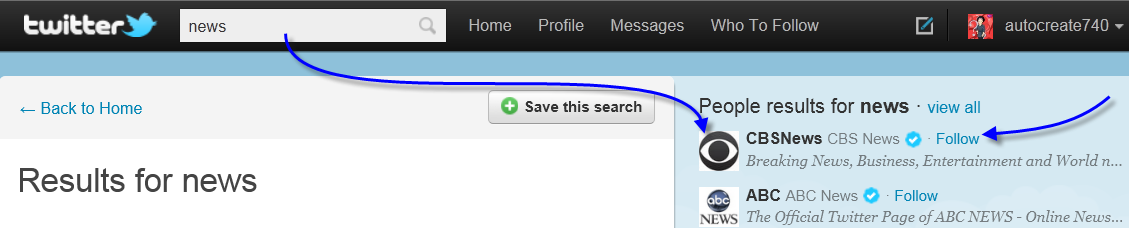
Another way to get started with Following on Twitter is to find people or publications that interest you.  When you find them, just click on the Follow button as illustrated below:

1 – In the SEARCH field, I have entered the word News.  On the right of the panel various news options appear with the word Follow next to them.

Click on the images to see a larger version.

2 – After you click on the Follow link.  Click the Back Home link to see your Timeline.

3 – When you are back at the Home screen, the News has been added to your Timeline along with everything else (Tweeps) you are following.

4 – If you do not want to Follow a particular choice (e.g., News)  anymore, type News in the search field, click the magnifying glass to start the search.  When you find what you are looking for,  click the Unfollow link.  You can also go to your Profile, view all you are following, and select to Unfollow from there.

Following is entertaining, informative,  and fun when you become part of the Twitter social network.  There is much to learn, and be a part of in this  social environment.   I hope you will join us soon 🙂

This completes our Beginner, Tech4Boomer Twitter sessions. See you next week.  🙂

Intro to Twitter_Tech4Boomers_Session 3

Avatars >>>Who are you?

Which one are you?

Is an Avatar important to have on Twitter?  Well, that  depends on your personal preference.  For example, some of us do not  believe that we are photogenic, and would rather not place a picture of ourselves on the Internet. For those of you who are still pondering how to deal with this issue, you may want to consider why an Avatar of your choice might be preferable, as opposed to having the generic one that Twitter assigns.  I mean, an EGGFor real?

Here is what Wikipedia (my favorite source for definitions) has to say about Avatars for computing:

Avatar (computing) In computing, an avatar is the graphical representation of the user or the user’s alter ego or character. It may take either a three-dimensional form, as in games or virtual worlds, or a two-dimensional form as an icon in Internet forums and other online  communities… It is an object representing the user. The term “avatar” can also refer to the personality connected with the screen name, or handle, of an Internet user.

So for those of you who would rather not appear on Twitter as an EGG, think about a picture, or some representation (a flower), something that you’d rather see yourself represented as on Twitter, then use the guidelines below to create your unique Avatar.  Here we go.

Once you have found a picture that you want to use for your Avatar, and save it in a format that you can ‘upload’ (e.g. png, peg extensions), it takes several steps to complete the upload of your Avatar to your Profile.  I have created six (6) diagrams to assist you with completing this task.  To see the diagrams clearly, just click with your mouse on the image provided.  You can also send them to print using your Browser.

Diagram 1 = Save your picture in a format you can upload on your Desktop.  Sign onto Twitter.  Click the Profile tab.

Diagram 1

Diagram 2 = Look for the picture you saved on your Desktop. Select (highlight) it. Click the Open button.

Diagram 2

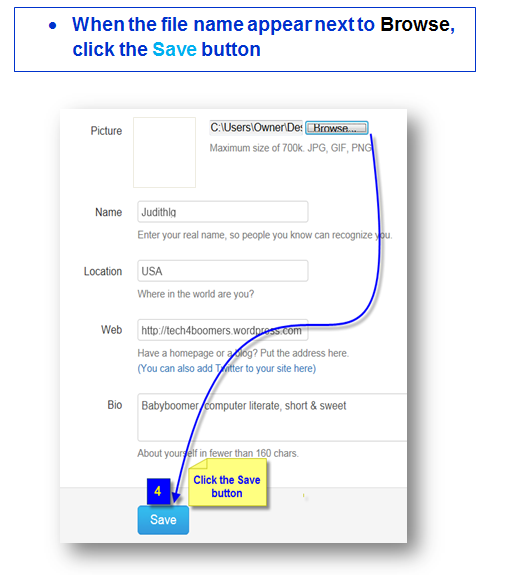
Diagram 3 = When the file (name) you selected appears next to Browse, click the Save button.

Diagram 3

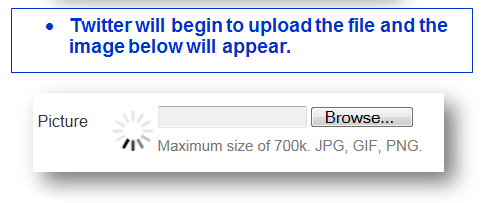
Diagram 4 = Twitter will begin to upload the file and the image below will appear.

Diagram 4

Diagram 5 = When the upload is complete your Avatar picture will appear in the picture box.

Diagram 5

Diagram 6 = You have just completed the upload of your Avatar.  Click the Home button to return to the screen where you started 🙂

Diagram 6

Note:

Sometimes it takes a little while for your Avatar to show up on Twitter. Be patient, you will see yourself with a new image shortly.

Now you are dressed for the party 🙂 ! See you on Twitter !

Yes You Can Backup Your WordPress Blog!

I am sure we have all been there, trying to get out that extraordinary post – you know-  the one that really gets your message out to your followers, and then “uh oh”, your computer,  or your software, or whatever!  Something happens to your Blog!

We’ve all been there at least once.  And, we usually don’t think about backup until that fatal moment when we cannot recover the wonderful piece of genius that we just wrote.  🙂

Well, I am here to tell you, Yes you can backup your WordPress Blog !  with the help of Christopher S. Penn he makes us all protectors of our Blogs!

Check out his guidelines at: http://www.christopherspenn.com/2009/05/how-to-back-up-your-wordpress-blog-in-60-seconds/#disqus_thread

Should Boomers be LinkedIn?

What is LinkedIn used for ?

LinkedIn is a professional social networking site. It’s something like a professional rolodex, which is maintained on the Internet.

  1. To be successful with LinkedIn, it is recommended that you establish your ‘connections with professionals you already know.

  2. If you’re a Boomer entrepreneur, or Boomer just looking for work, it would appear that this is an awesome resource you should tap into.


Below are some guidelines on how to join LinkedIn with integrity.

What is Required?

  1. New Linkedin members should be prepared to include a picture of themselves.  Preferably the picture should be of your face without any designs in the background.
  2.  Make sure your summary is well written, to the point, appealing. so that it makes people want to know more about you.
  3. When you fill in your Bio, as with the ‘older’ style resumes (not so long ago), make sure it is the truth folks.
  4. Send invitations for ‘connections’ to professionals with whom you have a prior business relationship.
  5. Be aware when you send an invitation, you can receive an ‘I don’t know’ (IDK) response from the recipient which counts against you.
  6. Five IDK’s will result in your having to submit your email address every time you try to make a ‘connection’.
  7. Make your profile ‘public’ if you want to reach the full potential of the network.

After you establish your list, below are some perks of being ‘connected’ with LinkedIn, which are covered in Wikipedia:

  1. It can be used to find jobs, people and business opportunities recommended by someone in one’s contact network.
  2. Employers can list jobs and search for potential candidates.
  3. Job seekers can review the profile of hiring managers and discover which of their existing contacts can introduce them.
  4. Users can post their own photos and view photos of others to aid in identification.
  5. Users can now follow different companies and can get notification about the new joining and offers available.
  6. Users can save (i.e., bookmark) jobs, which they would like to apply for.

Guidelines for joining can be found at:

1.     http://learn.linkedin.com/settings/

2.     http://windmillnetworking.com/2009/05/27/linkedin-group-etiquette-what-are-the-rules/

Join at https://www.linkedin.com/reg/join


Below is a great resource for Older Workers (just click the link) 🙂

 http://hubpages.com/tag/older+workers/hot

ERGONOMICS for us Boomers

Hi Boomers,

How’s your back feeling?

According to Wikipedia:
Ergonomics is concerned with the ‘fit’ between people and their technological tools and environments. It takes account of the user’s capabilities and limitations in seeking to ensure that tasks, equipment, information and the environment suit each user.

If you are having problems with various body parts, it may be that you need to adjust/correct your body posture at the computer.

In my recent cybertravels,  i looked for information that might be useful in helping you to relieve some of the stress on your body while working at the computer.

The site the chart was reproduced from is:  http://www.ergonomics-info.com/ergonomic-exercises.html

I suggest you visit the site when you next have an opportunity, or ache from working at the computer.   🙂

To get a closer look at the chart:  Place your mouse pointer on the image, then click with your left mouse button.

To print the chart:  Double click the image (to enlarge it) , Click File, Click Print


FACEBOOK CHANGES AGAIN

Hi Facebook Boomers,

On Twitter this week i noticed an interesting NYT article by Nick Bilton ,

Facebook Changes Privacy Settings to Enable Facial Recognition. 

I think you might want to be aware of the following changes to your Facebook accounts.  These are some of the highlights in the article:

  1. Facebook recently began changing its users privacy settings to automatically turn on a facial recognition feature that detects a user’s face in an image.
  2. Once the person’s face is detected, the Web site then encourages Facebook friends to tag them.
  3. Facebook also doesn’t give users the option to avoid being tagged in a photo; instead, people who don’t want their name attached to an image must untag themselves after the fact.
  4. You can change the privacy settings relating to the facial recognition feature, but it is a little confusing.
  5. If you want to disable the feature, you have to access your account privacy settings  and click “customize settings” at the bottom of the page.  Scroll down to a list called “things to share”
  6. Click on the button that says “suggest photos of me to friends”.
  7. At this point you will receive the option to disable the facial recognition feature.

This is a great resource for technology news.

You can follow Nick Bilton on Twitter @nickbilton

Why Twitter?

What’s happening Boomers?

It  occurred to me that some of you may want to know why you should join Twitter since there are other things you can do on the Internet.  Most of you are already using a cell phone, and email. Some of you are on Facebook; some are texting.  Some of you are thinking the whole social media “thing ” is out of control! You have as much info as you can stand!

Why Twitter?  Well, other than the fact I am on Twitter (smile), below are some of the reasons i joined.

I found the following explanation  to be one of the best, and check the date it was written!  2007!

Click the link to the website if you want to create an account and get a detailed description about how Twitter works.

For those of you who want a more graphic description how to join  Twitterland, i will be providing that in the near  future, or  you can join at the surprising addresses below.

In the meanwhile, Newbie’s who take the plunge, let me hear your comments after you join.

—————————————————————————————————————————————

March 15, 2007 4:15 PM PDT

Newbie’s guide to Twitter

If you’re not using Twitter yet, you may feel as if you’ve missed out. Twitter has not only tipped the tuna, but by some estimations, it has already jumped the shark. Don’t be put off by its excessive popularity with SXSW geeks or by the whining of Twitter haters who missed the fun. Twitter is an interesting and practical real-time messaging system for groups and friends. It’s just not completely obvious how to get into the “club.” So, here’s a newbie’s guide to this new platform. We don’t cover every feature of Twitter, but this should help get you started.

What is Twitter?

Twitter is an online service that enables you to broadcast short messages to your friends or “followers.” It also lets you specify which Twitter users you want to follow so you can read their messages in one place.

Read more: http://news.cnet.com/newbies-guide-to-twitter/#ixzz1Ni3kpJEl

*********************************************************************************************

Guess what ?  You can even follow the President?

http://twitter.com/BARACKOBAMA

********************************************************************************************

Missing Oprah?  Want to know what she’s doing?   🙂

http://twitter.com/OPRAH

Looking forward to hearing about your favorite people to follow 🙂 !