Intro to Twitter_Tech4Boomers_Session 2

Now that you have your Twitter ID, and are able to log in, you will want to become acquainted with how to send Tweets.  “Tweets” are the messages you type.  You can type a maximum of 140 characters.  Don’t worry,  Twitter counts the characters for you!  🙂

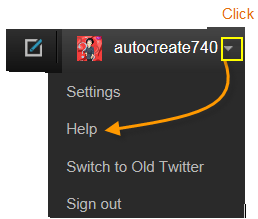
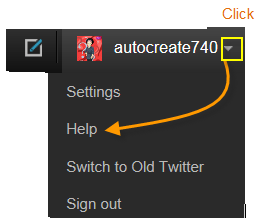
There are  Help/ guidelines available  in Twitter, which you can access with the down arrow next to your user name as shown in the illustration below.

Get help here

Use the Help button for detailed guidelines


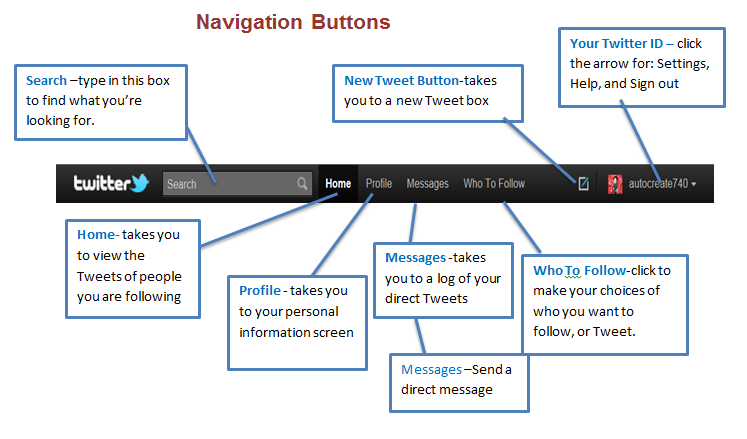
You are now ready to send ‘Tweets‘.  Begin by getting acquainted with the “navigation tabs”,  illustrated below.
Click the image to see a full screen.

Tweet Buttons

I expect that you will become increasingly capable in deciding whom you want to “Follow” .  In the 3rd session of Intro to Twitter_Tech4Boomers, we will cover Avatars, and how to create one.  In the 4th session of Intro to Twitter_Tech4Boomers we will review how to “Follow” other “Tweeps” on  Twitter.

Stay tuned 🙂

Intro to Twitter_Tech4Boomers_Session 1

I have heard from Boomer friends, and family that they have a Twitter account, but have not used it.  Some have said that they just can’t figure out what to do with all the little Icons provided on the screen. Well, in order to assist those who want to join, and those who have already joined, but are not using it, the guidelines in this post are designed to get you started.  In addition, Twitter has a wonderful support system, which is very easy to understand, and easily accessible.

  1. Navigating in Twitter requires that you have an email account.  Make sure you know what password you want to use before you sign-up.

  2. Twitter works via text, therefore the cost of using Twitter is usually what you pay for text messages on your phone.  Check with your carrier before you sign-up, so that you are clear about cost.

Note: Twitter has a 140 character limitation for each Tweet.  Who knows, maybe it’s just what you need to cut down on your bill 🙂 !

  1. You can choose to use your email as your user name; however, many people use their first name as their username so they can be recognized by their friends, and others.

  2. When your account has been created it will have an @symbol placed in front of it, for example, judith would become @judith

Note: Sometimes a number is added to your user name to avoid duplication. You can change your user name at a later date without affecting existing Tweets.

You can create an account at https://Twitter.com,  to fill out a form like the one below, then click the Sign Up button.

The next set of guidelines will show the Twitter Navigation Toolbar from a Personal Computer screen view.
NoteClick the image to see clearly.

See you at the next session.  🙂

NO PHISHING PLEASE!

  Nowadays it’s smart to  think cautiously BEFORE you open any emails from sources whom you do not recognize.  Why??  PHISHING !  Below is a description I found in Wikipedia.

Phishing is a way of attempting to acquire sensitive information such as usernames, passwords and credit card details by masquerading as a trustworthy entity in an electronic communication. Communications purporting to be from popular social web sites, auction sites, online payment processors or IT administrators are commonly used to lure the unsuspecting public. Phishing is typically carried out by e-mail spoofing or instant messaging,

[1] It often directs users to enter details at a fake website whose look and feel are almost identical to the legitimate one. Phishing is an example of social engineering techniques used to deceive users.

[2] Exploits the poor usability of current web security technologies.

[3] Attempts to deal with the growing number of reported phishing incidents include legislation, user training, public awareness, and technical security measures.

Take a look at the guidelines provided  by APWG  in order to learn how to protect yourself from this type of Internet crime.

Anti-Phishing Working Group
The Anti-Phishing Working Group (APWG) is the global pan-industrial and law enforcement association focused on eliminating the fraud and identity theft that result from phishing,pharming and email spoofing of all types.

http://www.antiphishing.org/consumer_recs.html

Be careful folks!

Cyberspace Email Manners

If you had to give yourself a grade, what would your mark be for your Cyberspace Email Manners?  Take a look at the chart below and give yourself a grade.  If you’re interested in how you did and want to know more about what are considered acceptable manners on the Internet, check out the articles  I came across from the on-line  Pink Magazine.

Take a moment to read what the experts say 🙂


Yes You Can Backup Your WordPress Blog!

I am sure we have all been there, trying to get out that extraordinary post – you know-  the one that really gets your message out to your followers, and then “uh oh”, your computer,  or your software, or whatever!  Something happens to your Blog!

We’ve all been there at least once.  And, we usually don’t think about backup until that fatal moment when we cannot recover the wonderful piece of genius that we just wrote.  🙂

Well, I am here to tell you, Yes you can backup your WordPress Blog !  with the help of Christopher S. Penn he makes us all protectors of our Blogs!

Check out his guidelines at: http://www.christopherspenn.com/2009/05/how-to-back-up-your-wordpress-blog-in-60-seconds/#disqus_thread

Should Boomers be LinkedIn?

What is LinkedIn used for ?

LinkedIn is a professional social networking site. It’s something like a professional rolodex, which is maintained on the Internet.

  1. To be successful with LinkedIn, it is recommended that you establish your ‘connections with professionals you already know.

  2. If you’re a Boomer entrepreneur, or Boomer just looking for work, it would appear that this is an awesome resource you should tap into.


Below are some guidelines on how to join LinkedIn with integrity.

What is Required?

  1. New Linkedin members should be prepared to include a picture of themselves.  Preferably the picture should be of your face without any designs in the background.
  2.  Make sure your summary is well written, to the point, appealing. so that it makes people want to know more about you.
  3. When you fill in your Bio, as with the ‘older’ style resumes (not so long ago), make sure it is the truth folks.
  4. Send invitations for ‘connections’ to professionals with whom you have a prior business relationship.
  5. Be aware when you send an invitation, you can receive an ‘I don’t know’ (IDK) response from the recipient which counts against you.
  6. Five IDK’s will result in your having to submit your email address every time you try to make a ‘connection’.
  7. Make your profile ‘public’ if you want to reach the full potential of the network.

After you establish your list, below are some perks of being ‘connected’ with LinkedIn, which are covered in Wikipedia:

  1. It can be used to find jobs, people and business opportunities recommended by someone in one’s contact network.
  2. Employers can list jobs and search for potential candidates.
  3. Job seekers can review the profile of hiring managers and discover which of their existing contacts can introduce them.
  4. Users can post their own photos and view photos of others to aid in identification.
  5. Users can now follow different companies and can get notification about the new joining and offers available.
  6. Users can save (i.e., bookmark) jobs, which they would like to apply for.

Guidelines for joining can be found at:

1.     http://learn.linkedin.com/settings/

2.     http://windmillnetworking.com/2009/05/27/linkedin-group-etiquette-what-are-the-rules/

Join at https://www.linkedin.com/reg/join


Below is a great resource for Older Workers (just click the link) 🙂

 http://hubpages.com/tag/older+workers/hot

ERGONOMICS for us Boomers

Hi Boomers,

How’s your back feeling?

According to Wikipedia:
Ergonomics is concerned with the ‘fit’ between people and their technological tools and environments. It takes account of the user’s capabilities and limitations in seeking to ensure that tasks, equipment, information and the environment suit each user.

If you are having problems with various body parts, it may be that you need to adjust/correct your body posture at the computer.

In my recent cybertravels,  i looked for information that might be useful in helping you to relieve some of the stress on your body while working at the computer.

The site the chart was reproduced from is:  http://www.ergonomics-info.com/ergonomic-exercises.html

I suggest you visit the site when you next have an opportunity, or ache from working at the computer.   🙂

To get a closer look at the chart:  Place your mouse pointer on the image, then click with your left mouse button.

To print the chart:  Double click the image (to enlarge it) , Click File, Click Print


Great APPS for ANDROID FANS

For ANDROID Boomers

Can you imagine?  Not all of my Boomer friends & family are iphone owners/users-fans!  (Go figure).

Anyway, in the interest of being ‘balanced‘,  i wanted to suggest you take a look at  some of the apps available for the Android phone.

Below are three sites that gave their opinions.  You can go to each website to see the full list of available apps. In this post, i highlight some apps that caught my interest. These are all free 🙂 !

http://gizmodo.com/5739420/the-best-android-apps

Entertainment

The Best Android AppsSoundHound: Shazam gets all the pub but SoundHound is just as good at identifying music and better for Android because there’s no limit on how many songs you tag per month. Soundhound also throws in lyrics and links to videos too. Free ( i have this app on my iphone, and it’s great!)


The Best Android AppsWords with Friends: Finally available on Android, Words with Friends lets you dominate your Android and iPhone-wielding friends (cross-platform gaming!) with your vocabulary skills and astute tile placement. Free

Productivity

The Best Android AppsAstrid Task/To Do List: No other app gives as much detail to to do lists as Astrid. Its “advanced” options lets you set priority levels, integrate with Google Calendar, sync with Google tasks, and set up tags, alerts and periodic reminders. Astrid keeps it easy, for the most part, but also offers deeper settings if you’re the obsessive, customize-everything exactly-how-you-want-it type. Free.

Another site i checked out is
http://www.digitaltrends.com/mobile/best-android-apps/

These are some of the apps i liked.

Utilities

gas-buddy-iconGas Buddy (Free)

With gas prices still consistently rising, the quest for the cheapest nearby gas can be a frustrating and pointless task, especially if you are driving around wasting precious fuel to find a better price just for the heck of saying you did. Gas Buddy uses your location to quickly locate nearby gas stations and immediately give you the best price around. The app gives you a list and a helpful map of all of your options. Never again will you fill up only to drive by a less expensive station five blocks later.

*************************************

iTriage Mobile HealthiTriage Mobile Health (Free)

Created by doctors, this app is designed to give users quick and easy access to medical info as well as nearby treatment facilities. With just a few clicks, users can find the nearest medical facility based on need (emergency, urgent care, pharmacy, etc.) and quickly use built-in Google Maps to navigate to the destination. The app also features a symptom-checker, doctor directory, and information about diseases and procedures.

Lifestyle

The Best Android AppsFlash Player 10.2: I really don’t care if Flash is good for the web or not, I just want to see as much web content as I can on my Android phone. Downloading Flash Player 10.2 gets me one step closer to that. Free.

FINALLY, Take the Tour at
http://gist.com/corp/why-gist/view-all-your-contacts
Below is their description of GIST

****************************************************

Add Contacts Automatically

Your contacts are everywhere. They are in email, social networks, on your mobile phone and many other sources. Gist brings your contacts into one place to give you a full view of your network making it easy to find anyone, anytime.

That’s all for now about Android 🙂
FACEBOOK CHANGES AGAIN

Hi Facebook Boomers,

On Twitter this week i noticed an interesting NYT article by Nick Bilton ,

Facebook Changes Privacy Settings to Enable Facial Recognition. 

I think you might want to be aware of the following changes to your Facebook accounts.  These are some of the highlights in the article:

  1. Facebook recently began changing its users privacy settings to automatically turn on a facial recognition feature that detects a user’s face in an image.
  2. Once the person’s face is detected, the Web site then encourages Facebook friends to tag them.
  3. Facebook also doesn’t give users the option to avoid being tagged in a photo; instead, people who don’t want their name attached to an image must untag themselves after the fact.
  4. You can change the privacy settings relating to the facial recognition feature, but it is a little confusing.
  5. If you want to disable the feature, you have to access your account privacy settings  and click “customize settings” at the bottom of the page.  Scroll down to a list called “things to share”
  6. Click on the button that says “suggest photos of me to friends”.
  7. At this point you will receive the option to disable the facial recognition feature.

This is a great resource for technology news.

You can follow Nick Bilton on Twitter @nickbilton

Cell Phone Cancer YIKES!

According to Google, Dr. Martin Cooper (Motorola) is credited with inventing the first cell phone, and the first person to make a call on a portable cell phone in April  1973. Now, after all these years  (38 to be exact), they are telling us about cell phone cancer?

I’m sure many of you felt a ‘twinge’ of concern at hearing this news.  I wanted to know what I was in store for; I’ve been a cell phone user for more than 20 years.  Although in recent years, I have become more of a cell phone ‘text er  which is faster and more convenient for me.

So, here are some of the facts I discovered from  two  New York Times articles in the Health Section.

First article by Tara Parker- Pope

Piercing the Fog Around Cellphones and Cancer, June 6, 2011 stated some of the following facts:

  1. The World Health Organization declared that it was ‘possible’ the phones could cause cancer.
  2. This is the first time a major health organization has suggested such a link, and it was promptly disputed by many scientists…
  3. The source of the latest claim is the International Agency for Research on Cancer.
  4. The panel based its cellphone findings on the fact that they give off a weak form of energy called nonionizing radiation…
  5. The human studies showed only an association between cellphone use and cancer, not a causal relationship.
  6. Some of the research suggests links to three types of tumors…
  7. All these tumors are rare, so even if cellphone use does increase risk, the risk to any individual is still very low.
  8. Scientists dispute the research because they believe it is plagued by methodological problems.

Tara Parker-Pope wrote a second article

A Doctor Who Must Navigate a Contentious Divide”.

This article covered what Dr. Jonathan Samet, chairman of a World Health Organization committee, thinks about the findings and the reaction to the controversy.  It should be noted that one of  Dr. Samet’s reports was done on tobacco 25 years ago.  He has also done studies on secondhand smoke.  However, in regard to the cellphone findings, The American Cancer Society also said the findings were based on flawed data and should be interpreted with ‘great care’.

For my Baby Boomer friends and family, maybe it’s time to ‘text’ and ‘tweet’ more.  🙂