Intro to Twitter_Tech4Boomers_Session 4

Who’s your Twitter in-crowd?

On Twitter, it’s all about who and what you Follow.  Following is a huge part of what’s happening in this particular social universe.

‘Following’ is a personal choice.  A good place to start is with  ‘friends’ whom you already know, in your personal ‘social circle’, those who are also Tweeps.  In this way, they can guide you on how to send Tweets, and give you a sense of belonging to the Twitter community until you get comfortable with tweeting in a larger social network.  Ask your friends what their Twitter ID’s are.  Once you have the ID’s, you can search for them using the SEARCH field.  When you find an ID, click the Follow link.

                                    **********

Another way to get started with Following on Twitter is to find people or publications that interest you.  When you find them, just click on the Follow button as illustrated below:

1 – In the SEARCH field, I have entered the word News.  On the right of the panel various news options appear with the word Follow next to them.

Click on the images to see a larger version.
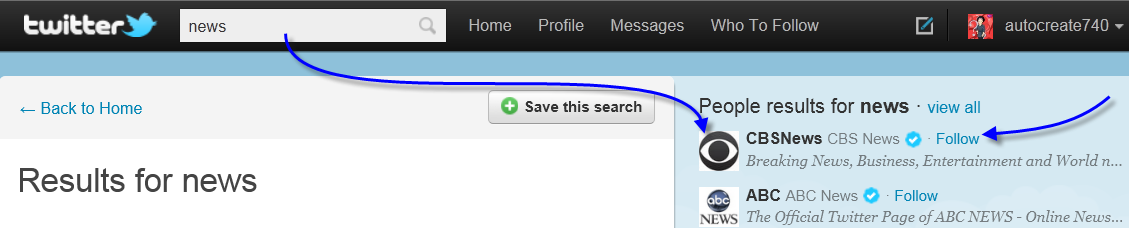
2 – After you click on the Follow link.  Click the Back Home link to see your Timeline.

3 – When you are back at the Home screen, the News has been added to your Timeline along with everything else (Tweeps) you are following.

4 – If you do not want to Follow a particular choice (e.g., News)  anymore, type News in the search field, click the magnifying glass to start the search.  When you find what you are looking for,  click the Unfollow link.  You can also go to your Profile, view all you are following, and select to Unfollow from there.

Following is entertaining, informative,  and fun when you become part of the Twitter social network.  There is much to learn, and be a part of in this  social environment.   I hope you will join us soon 🙂

This completes our Beginner, Tech4Boomer Twitter sessions. See you next week.  🙂

To Be a Tweep or Not

‘To be a Tweep” or not’. There’s no question that Twitter and sending ‘Tweets‘ to your ‘Tweeps‘ is the latest social gadget we have found to entertain ourselves while doing business’. Is this the new ‘game of life?’. I wonder… On the horizon is Microsoft’s new Avatar application. We can replace our ‘real faces’ with an Avatar which looks just like us! Go figure?.. Does that mean Facebook pics will need to be replaced with Avatar pics ? Where where will the real us reside in the end?

Intro to Twitter_Tech4Boomers_Session 3

Avatars >>>Who are you?

Which one are you?

Is an Avatar important to have on Twitter?  Well, that  depends on your personal preference.  For example, some of us do not  believe that we are photogenic, and would rather not place a picture of ourselves on the Internet. For those of you who are still pondering how to deal with this issue, you may want to consider why an Avatar of your choice might be preferable, as opposed to having the generic one that Twitter assigns.  I mean, an EGGFor real?

Here is what Wikipedia (my favorite source for definitions) has to say about Avatars for computing:

Avatar (computing) In computing, an avatar is the graphical representation of the user or the user’s alter ego or character. It may take either a three-dimensional form, as in games or virtual worlds, or a two-dimensional form as an icon in Internet forums and other online  communities… It is an object representing the user. The term “avatar” can also refer to the personality connected with the screen name, or handle, of an Internet user.

So for those of you who would rather not appear on Twitter as an EGG, think about a picture, or some representation (a flower), something that you’d rather see yourself represented as on Twitter, then use the guidelines below to create your unique Avatar.  Here we go.

Once you have found a picture that you want to use for your Avatar, and save it in a format that you can ‘upload’ (e.g. png, peg extensions), it takes several steps to complete the upload of your Avatar to your Profile.  I have created six (6) diagrams to assist you with completing this task.  To see the diagrams clearly, just click with your mouse on the image provided.  You can also send them to print using your Browser.

Diagram 1 = Save your picture in a format you can upload on your Desktop.  Sign onto Twitter.  Click the Profile tab.

Diagram 1

Diagram 2 = Look for the picture you saved on your Desktop. Select (highlight) it. Click the Open button.

Diagram 2

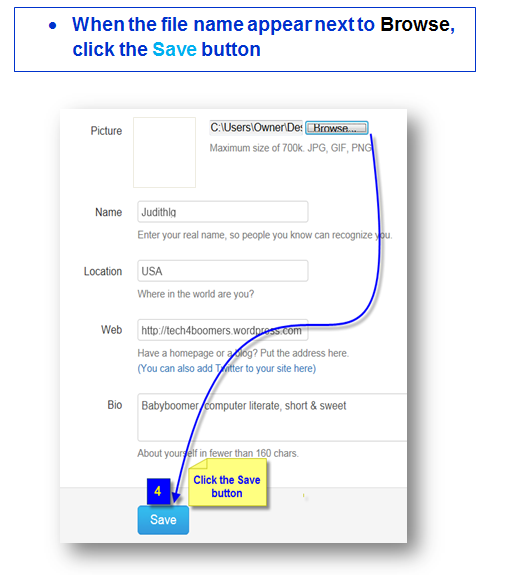
Diagram 3 = When the file (name) you selected appears next to Browse, click the Save button.

Diagram 3

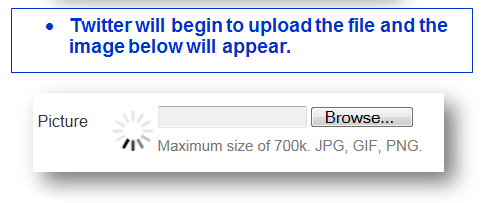
Diagram 4 = Twitter will begin to upload the file and the image below will appear.

Diagram 4

Diagram 5 = When the upload is complete your Avatar picture will appear in the picture box.

Diagram 5

Diagram 6 = You have just completed the upload of your Avatar.  Click the Home button to return to the screen where you started 🙂

Diagram 6

Note:

Sometimes it takes a little while for your Avatar to show up on Twitter. Be patient, you will see yourself with a new image shortly.

Now you are dressed for the party 🙂 ! See you on Twitter !

Intro to Twitter_Tech4Boomers_Session 2

Now that you have your Twitter ID, and are able to log in, you will want to become acquainted with how to send Tweets.  “Tweets” are the messages you type.  You can type a maximum of 140 characters.  Don’t worry,  Twitter counts the characters for you!  🙂

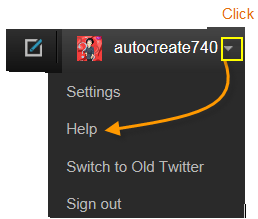
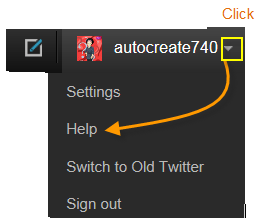
There are  Help/ guidelines available  in Twitter, which you can access with the down arrow next to your user name as shown in the illustration below.

Get help here

Use the Help button for detailed guidelines


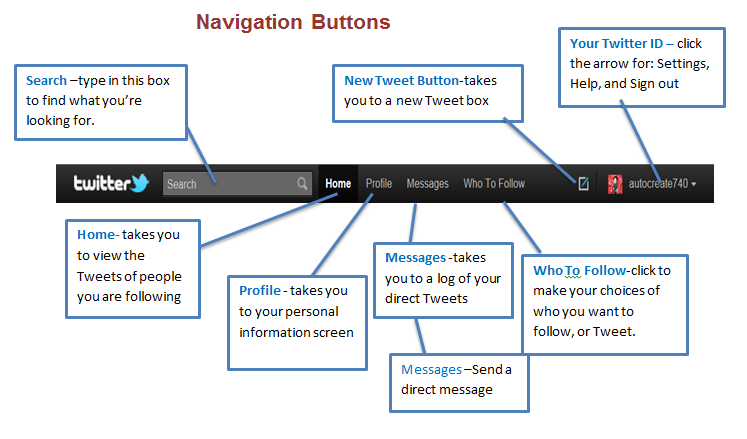
You are now ready to send ‘Tweets‘.  Begin by getting acquainted with the “navigation tabs”,  illustrated below.
Click the image to see a full screen.

Tweet Buttons

I expect that you will become increasingly capable in deciding whom you want to “Follow” .  In the 3rd session of Intro to Twitter_Tech4Boomers, we will cover Avatars, and how to create one.  In the 4th session of Intro to Twitter_Tech4Boomers we will review how to “Follow” other “Tweeps” on  Twitter.

Stay tuned 🙂

Intro to Twitter_Tech4Boomers_Session 1

I have heard from Boomer friends, and family that they have a Twitter account, but have not used it.  Some have said that they just can’t figure out what to do with all the little Icons provided on the screen. Well, in order to assist those who want to join, and those who have already joined, but are not using it, the guidelines in this post are designed to get you started.  In addition, Twitter has a wonderful support system, which is very easy to understand, and easily accessible.

  1. Navigating in Twitter requires that you have an email account.  Make sure you know what password you want to use before you sign-up.

  2. Twitter works via text, therefore the cost of using Twitter is usually what you pay for text messages on your phone.  Check with your carrier before you sign-up, so that you are clear about cost.

Note: Twitter has a 140 character limitation for each Tweet.  Who knows, maybe it’s just what you need to cut down on your bill 🙂 !

  1. You can choose to use your email as your user name; however, many people use their first name as their username so they can be recognized by their friends, and others.

  2. When your account has been created it will have an @symbol placed in front of it, for example, judith would become @judith

Note: Sometimes a number is added to your user name to avoid duplication. You can change your user name at a later date without affecting existing Tweets.

You can create an account at https://Twitter.com,  to fill out a form like the one below, then click the Sign Up button.

The next set of guidelines will show the Twitter Navigation Toolbar from a Personal Computer screen view.
NoteClick the image to see clearly.

See you at the next session.  🙂

Should Boomers be LinkedIn?

What is LinkedIn used for ?

LinkedIn is a professional social networking site. It’s something like a professional rolodex, which is maintained on the Internet.

  1. To be successful with LinkedIn, it is recommended that you establish your ‘connections with professionals you already know.

  2. If you’re a Boomer entrepreneur, or Boomer just looking for work, it would appear that this is an awesome resource you should tap into.


Below are some guidelines on how to join LinkedIn with integrity.

What is Required?

  1. New Linkedin members should be prepared to include a picture of themselves.  Preferably the picture should be of your face without any designs in the background.
  2.  Make sure your summary is well written, to the point, appealing. so that it makes people want to know more about you.
  3. When you fill in your Bio, as with the ‘older’ style resumes (not so long ago), make sure it is the truth folks.
  4. Send invitations for ‘connections’ to professionals with whom you have a prior business relationship.
  5. Be aware when you send an invitation, you can receive an ‘I don’t know’ (IDK) response from the recipient which counts against you.
  6. Five IDK’s will result in your having to submit your email address every time you try to make a ‘connection’.
  7. Make your profile ‘public’ if you want to reach the full potential of the network.

After you establish your list, below are some perks of being ‘connected’ with LinkedIn, which are covered in Wikipedia:

  1. It can be used to find jobs, people and business opportunities recommended by someone in one’s contact network.
  2. Employers can list jobs and search for potential candidates.
  3. Job seekers can review the profile of hiring managers and discover which of their existing contacts can introduce them.
  4. Users can post their own photos and view photos of others to aid in identification.
  5. Users can now follow different companies and can get notification about the new joining and offers available.
  6. Users can save (i.e., bookmark) jobs, which they would like to apply for.

Guidelines for joining can be found at:

1.     http://learn.linkedin.com/settings/

2.     http://windmillnetworking.com/2009/05/27/linkedin-group-etiquette-what-are-the-rules/

Join at https://www.linkedin.com/reg/join


Below is a great resource for Older Workers (just click the link) 🙂

 http://hubpages.com/tag/older+workers/hot